> ## Documentation Index
> Fetch the complete documentation index at: https://help.trickle.so/llms.txt
> Use this file to discover all available pages before exploring further.
# Stripe & Payment Integration
> Learn how to integrate Stripe & payment with your Trickle application.
If you have any questions or need further assistance, don’t hesitate to [join our Discord](https://discord.com/invite/AD44k7hVSY) community. We’re always there to connect with you and offer support!
## What is Stripe?
 [Stripe](https://stripe.com) is a cloud-based fintech platform that lets businesses of every size accept payments, move money, and embed financial services with just a few lines of code. Its core offering is a unified set of REST and GraphQL APIs along with prebuilt UI components such as Checkout, Payment Links, and Elements. These handle everything from card payments to over 100 local methods, in-person terminals, invoicing, and fraud protection through Radar.
If you’re building an app with [Trickle](https://trickle.so) and want to integrate Stripe for payments, we recommend using Stripe Payment Links. This method is simple, secure, and does not expose any API keys.
The integration is straightforward. You just need to embed the Stripe-generated payment link into your Trickle app. This method is best suited for fixed-amount payment scenarios such as e-commerce checkouts or subscription plans.
## **Stripe Integration Steps**
Sign up at [https://stripe.com](https://stripe.com), activate your account, and link your bank account. Be sure to complete your **Business settings**, including logo and business information.
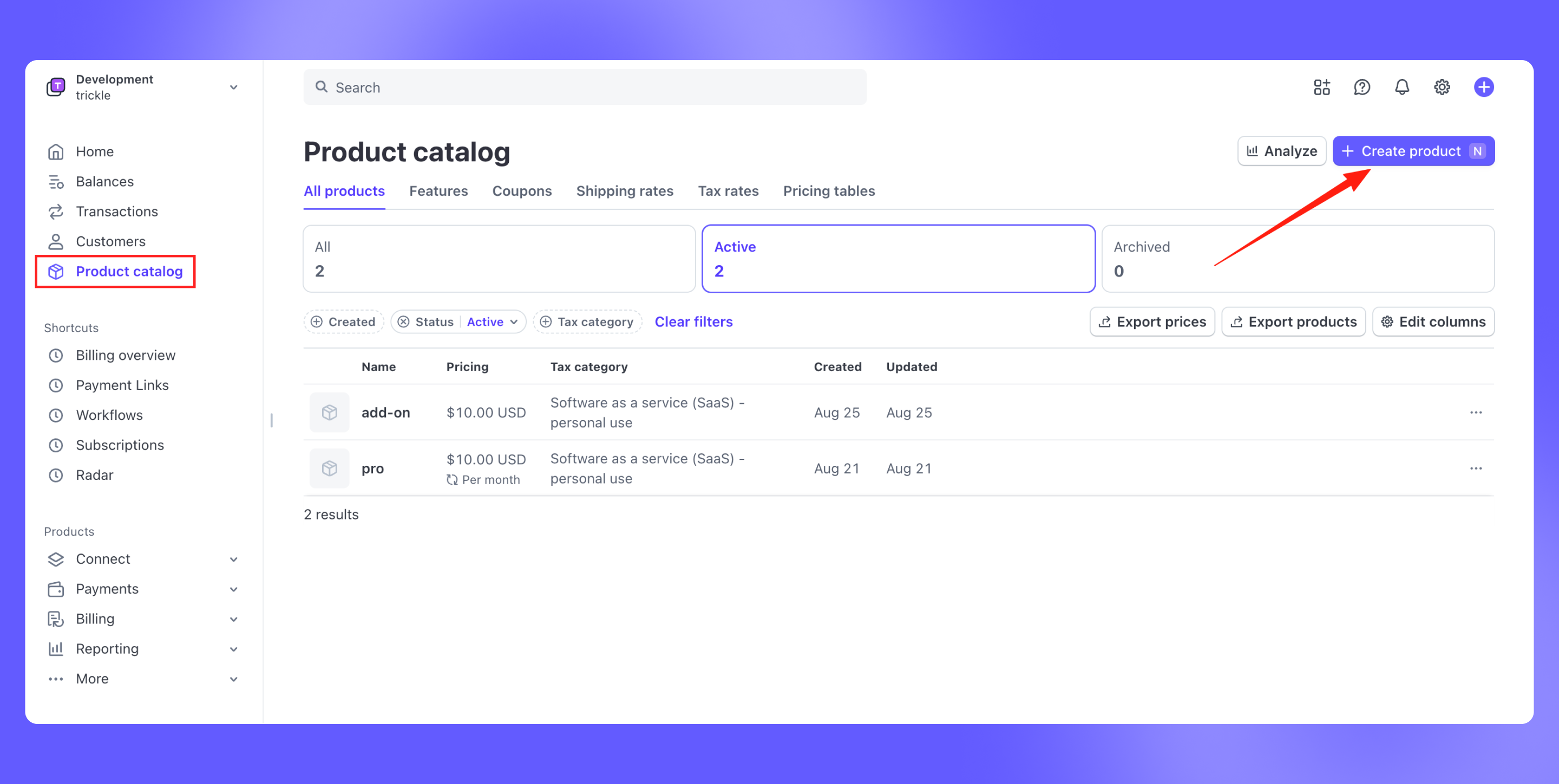
Set up your products (e.g. “Pro Plan”) and assign corresponding pricing models (monthly, yearly, etc.).
[Stripe](https://stripe.com) is a cloud-based fintech platform that lets businesses of every size accept payments, move money, and embed financial services with just a few lines of code. Its core offering is a unified set of REST and GraphQL APIs along with prebuilt UI components such as Checkout, Payment Links, and Elements. These handle everything from card payments to over 100 local methods, in-person terminals, invoicing, and fraud protection through Radar.
If you’re building an app with [Trickle](https://trickle.so) and want to integrate Stripe for payments, we recommend using Stripe Payment Links. This method is simple, secure, and does not expose any API keys.
The integration is straightforward. You just need to embed the Stripe-generated payment link into your Trickle app. This method is best suited for fixed-amount payment scenarios such as e-commerce checkouts or subscription plans.
## **Stripe Integration Steps**
Sign up at [https://stripe.com](https://stripe.com), activate your account, and link your bank account. Be sure to complete your **Business settings**, including logo and business information.
Set up your products (e.g. “Pro Plan”) and assign corresponding pricing models (monthly, yearly, etc.).
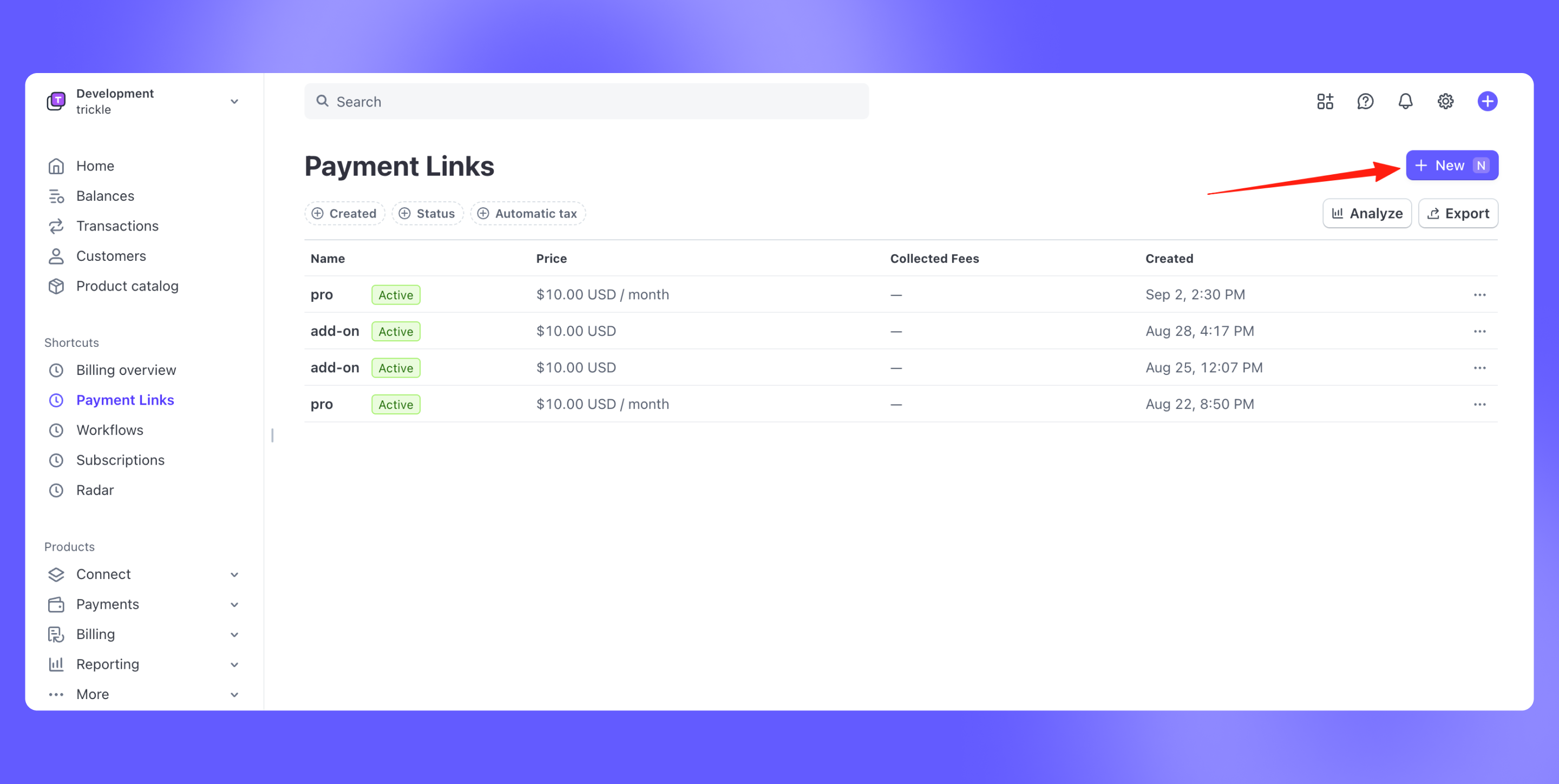
 Set parameters and preview the checkout page.
* Create new payment link
Set parameters and preview the checkout page.
* Create new payment link
 * Configure link parameters and preview the UI on the right-hand side.
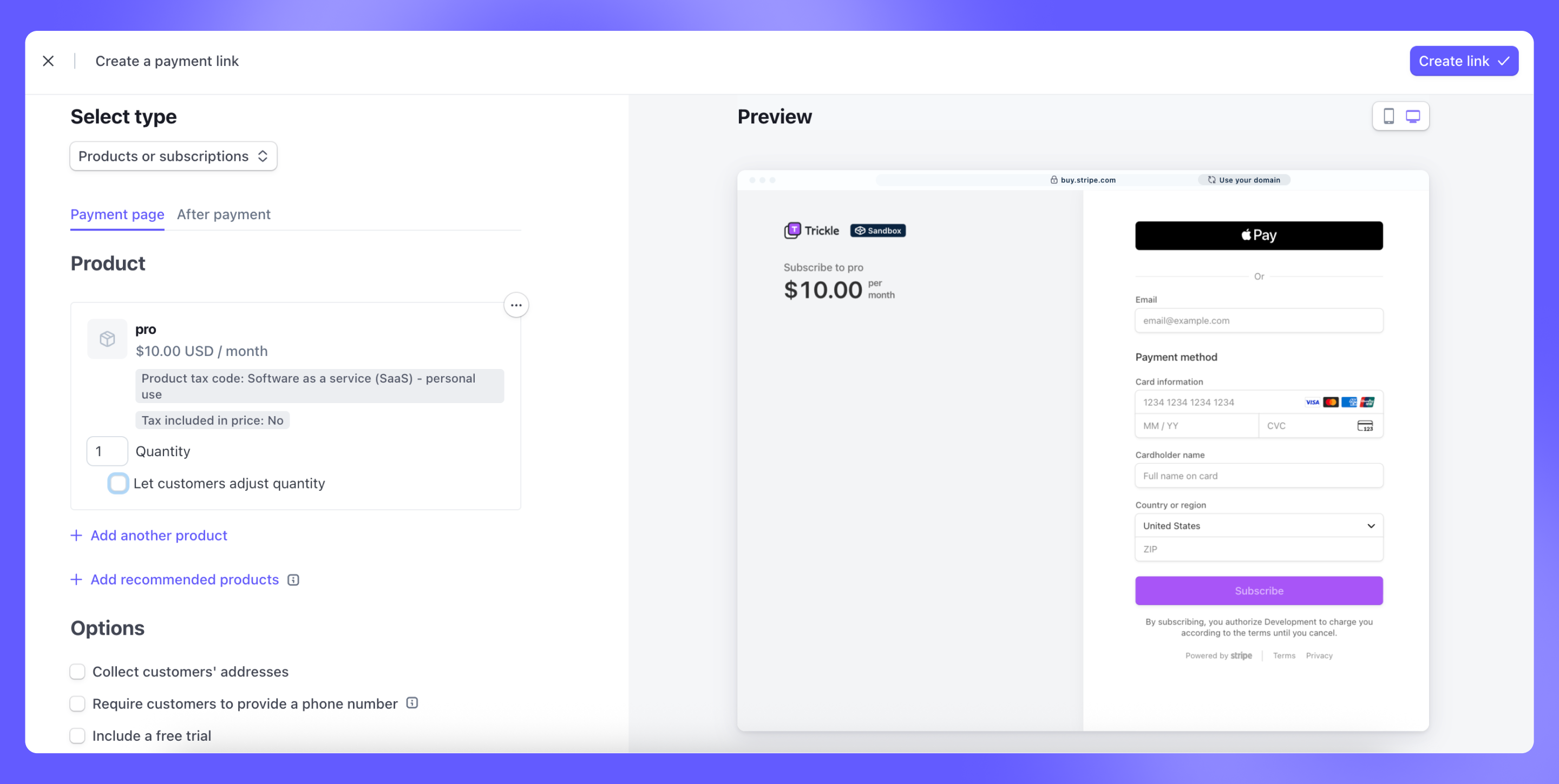 When users proceed to checkout, they will be redirected to the Stripe-hosted payment page to complete the transaction.
Providing the payment link to Trickle AI, and ask AI to link the payment link when checkout.
After successful payment, you’ll need to grant corresponding access or features to the user.
## **Stripe Webhook Integration**
If you want this process to be fully automated, you’ll need to handle Stripe’s webhook events via a backend service. We recommend integrating with **Supabase Edge Functions** for this purpose.
Additionally, you’ll also have to store user-related data in **Supabase**.
* Following the instructions to connect Supabase:
[Supabase integration](/Integrations/Supabase)
* Use **Supabase Authentication** to manage user registration and login.
* Store user data in Supabase, especially the **subscription status field**.
* Use **Supabase Edge Functions** to handle Stripe webhook events. When a payment is completed, update the user’s subscription status in the Supabase database.
* Deploy the stripe-webhook template function in Supabase.
When users proceed to checkout, they will be redirected to the Stripe-hosted payment page to complete the transaction.
Providing the payment link to Trickle AI, and ask AI to link the payment link when checkout.
After successful payment, you’ll need to grant corresponding access or features to the user.
## **Stripe Webhook Integration**
If you want this process to be fully automated, you’ll need to handle Stripe’s webhook events via a backend service. We recommend integrating with **Supabase Edge Functions** for this purpose.
Additionally, you’ll also have to store user-related data in **Supabase**.
* Following the instructions to connect Supabase:
[Supabase integration](/Integrations/Supabase)
* Use **Supabase Authentication** to manage user registration and login.
* Store user data in Supabase, especially the **subscription status field**.
* Use **Supabase Edge Functions** to handle Stripe webhook events. When a payment is completed, update the user’s subscription status in the Supabase database.
* Deploy the stripe-webhook template function in Supabase.
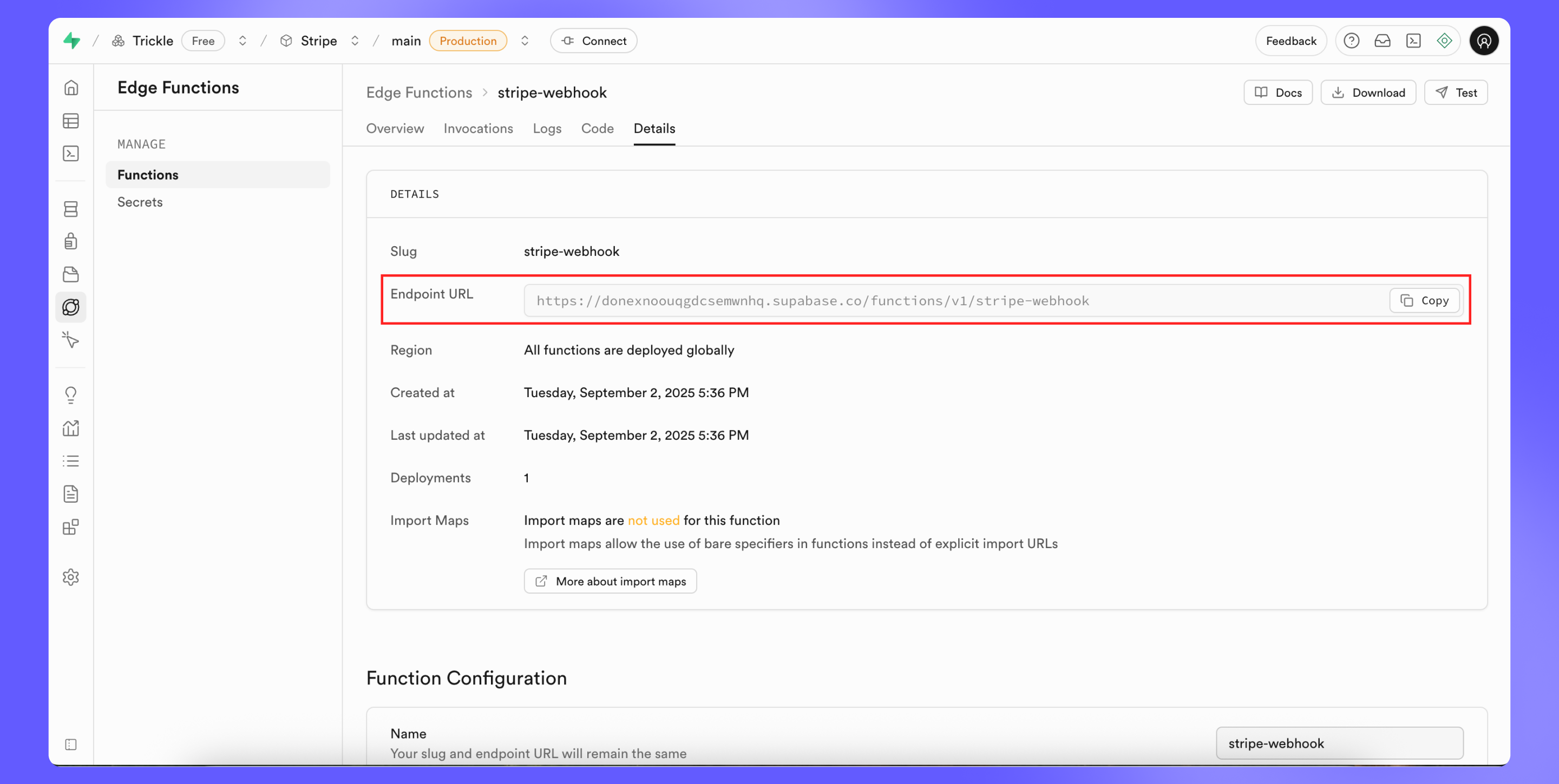
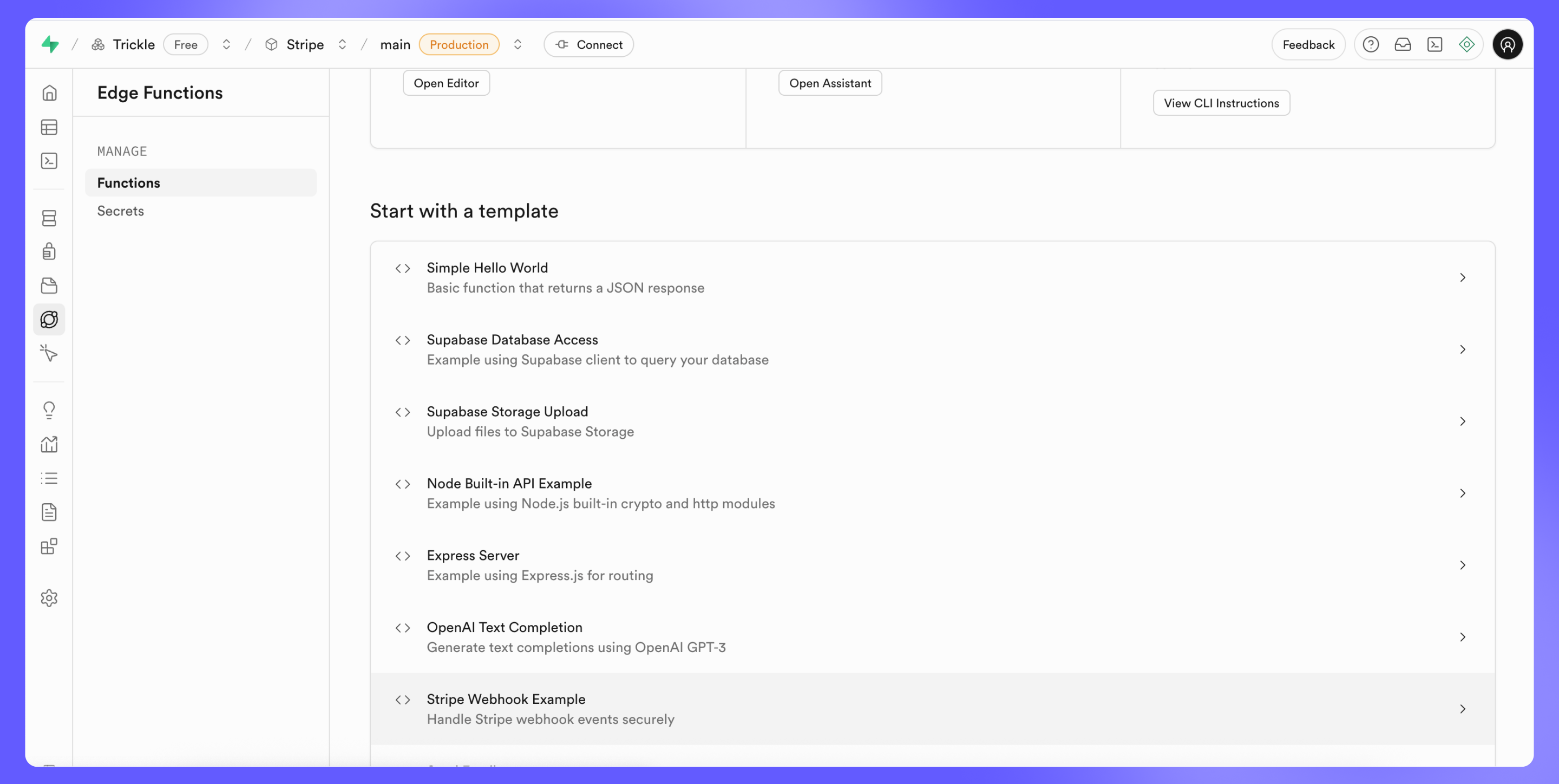 * Copy the function endpoint URL. For example: `https://projectid.supabase.co/functions/v1/stripe-webhook`
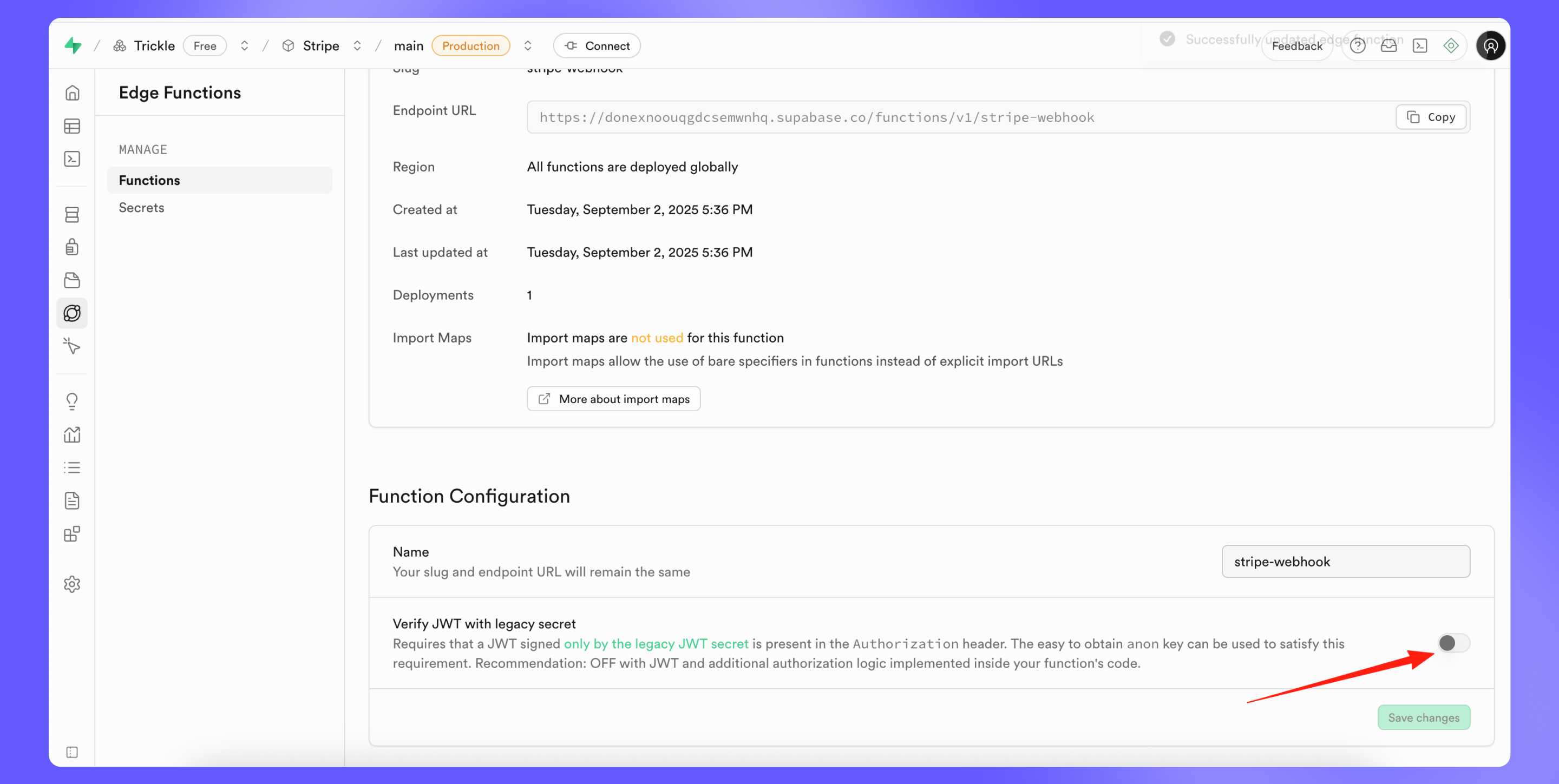
 * Disable JWT verification on this function.
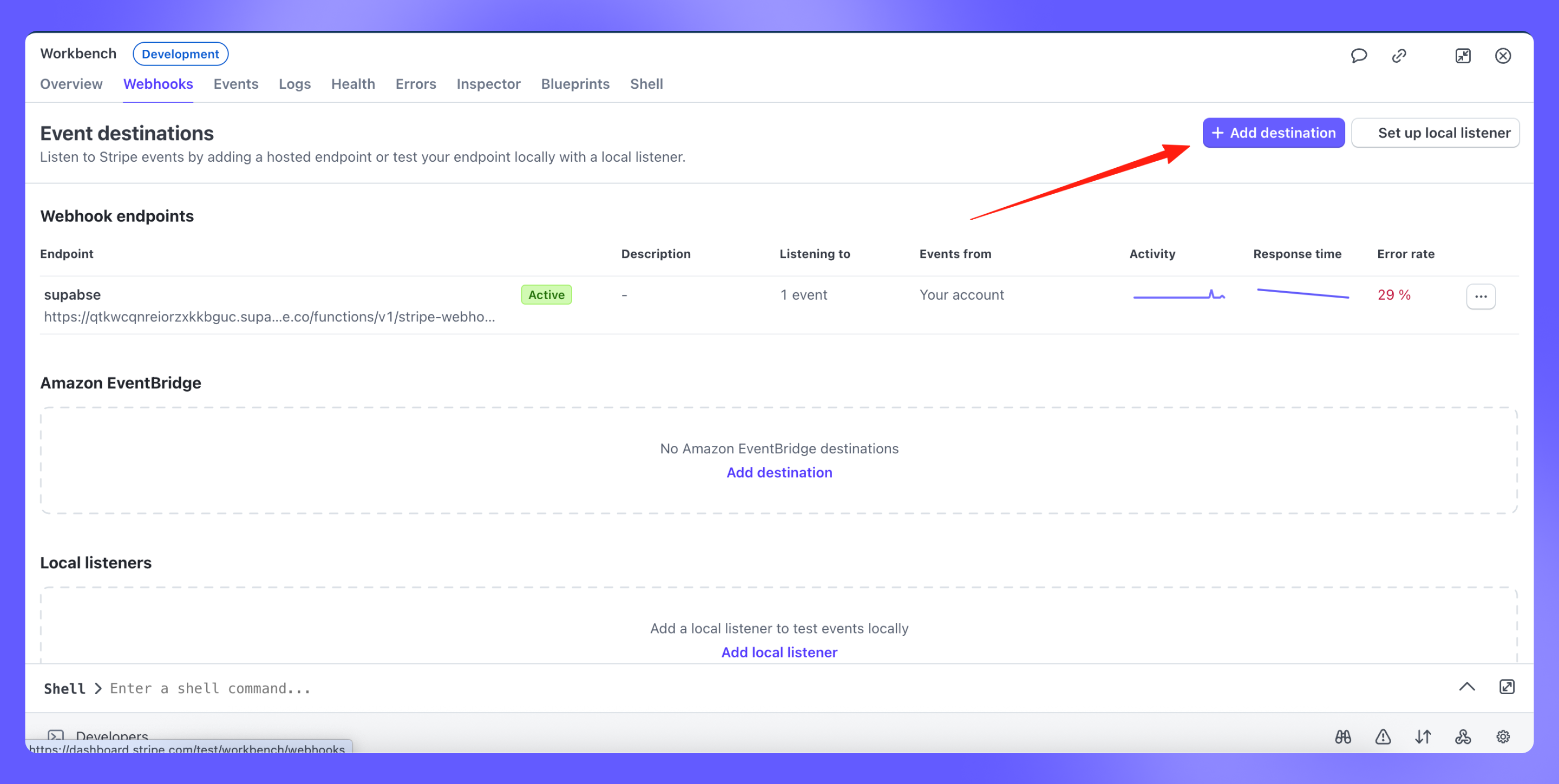
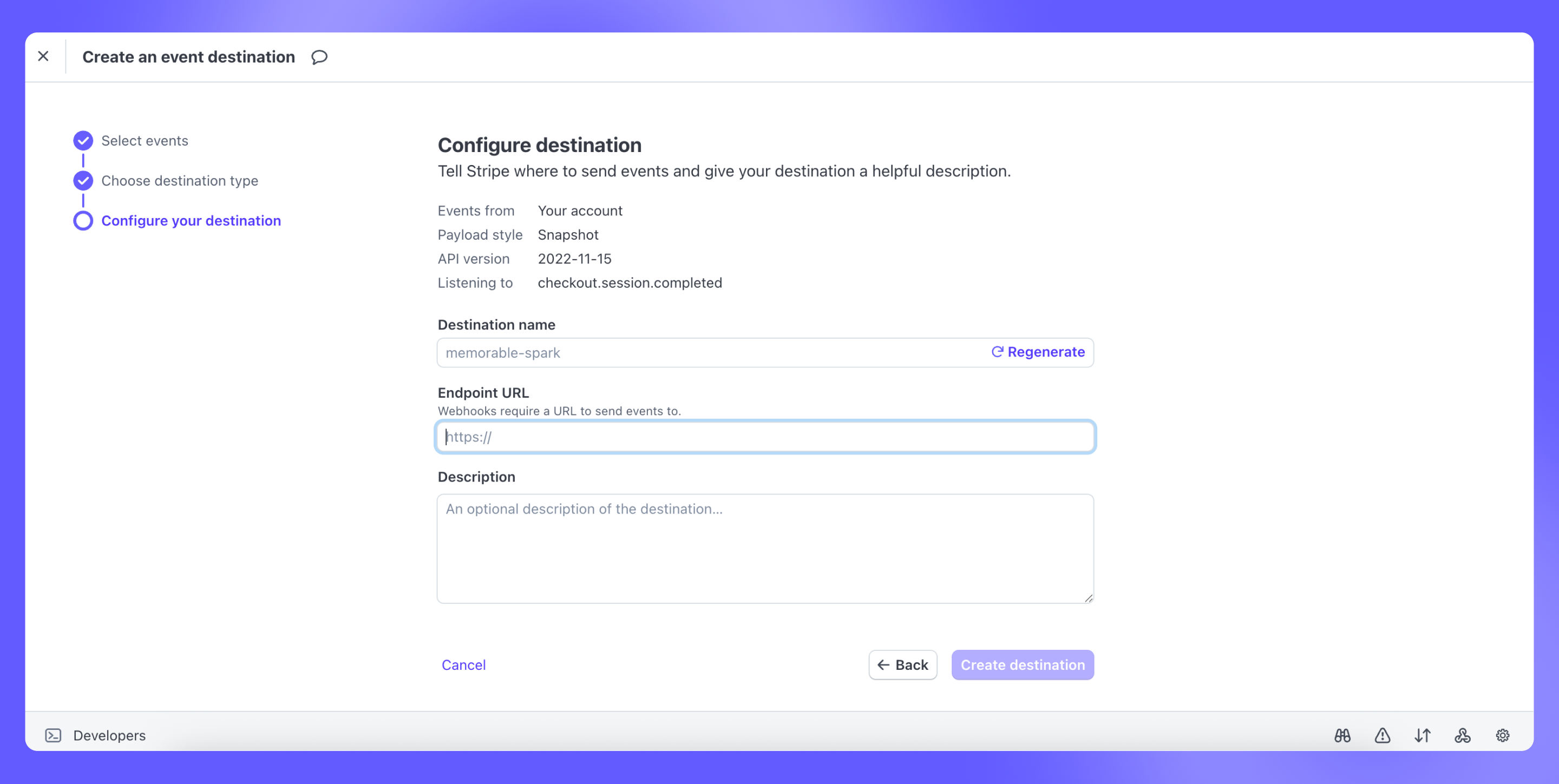
 * Add a new webhook destination in Stripe.
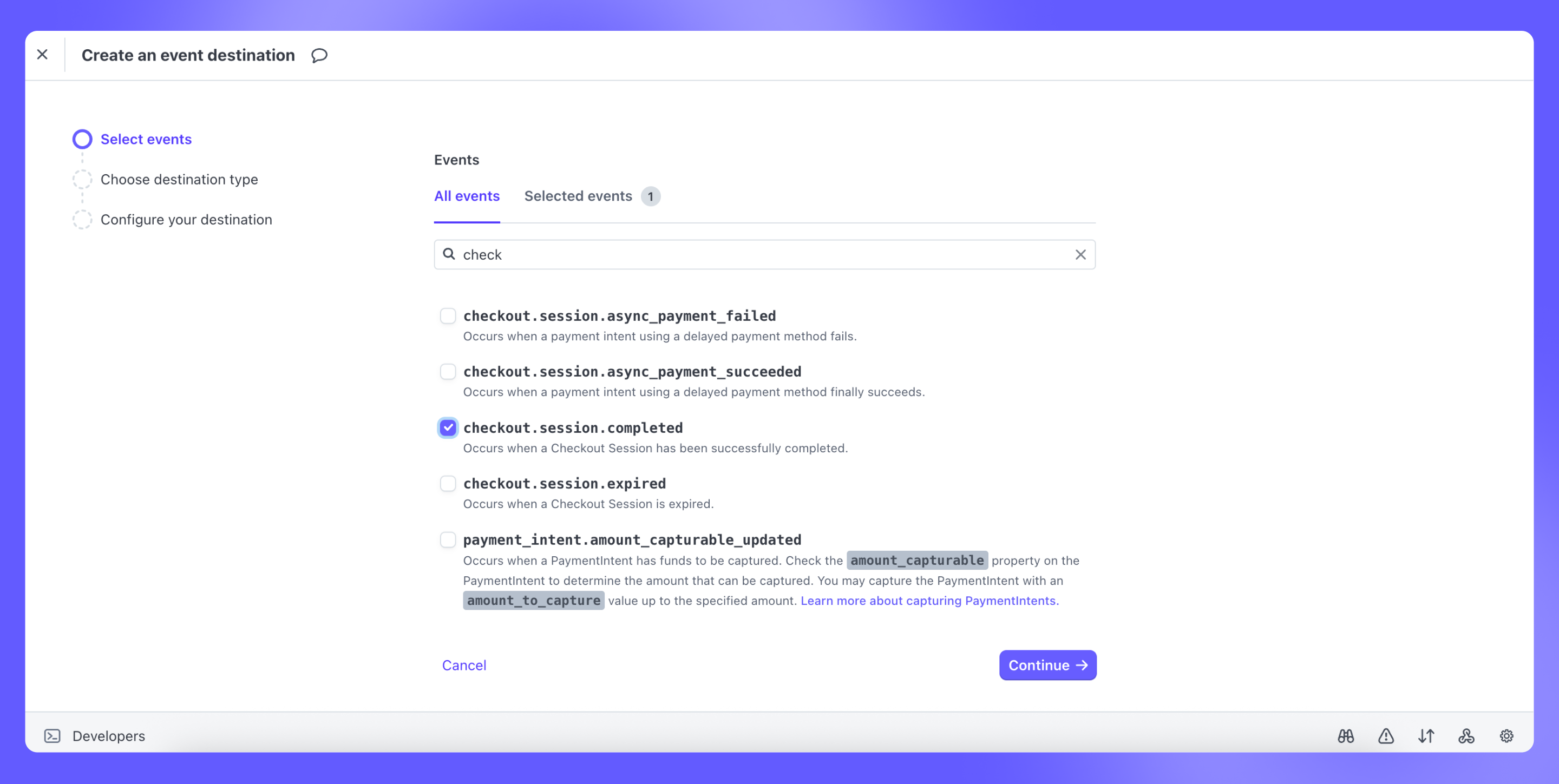
 * Select the event type: `checkout.session.completed`.
 * Set the webhook endpoint to the Supabase Edge Function URL above.
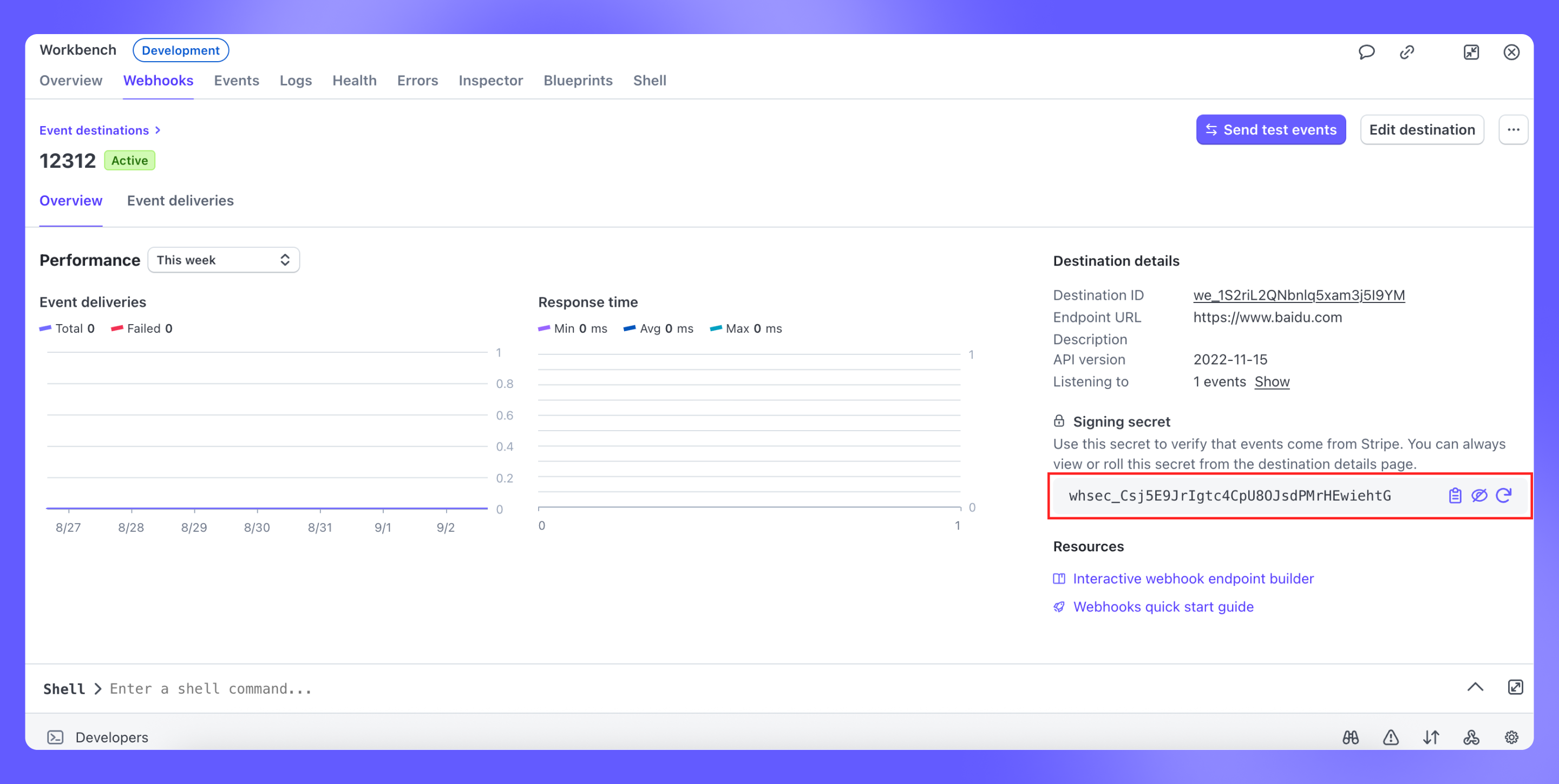
 * Copy the Webhook Signing Secret.
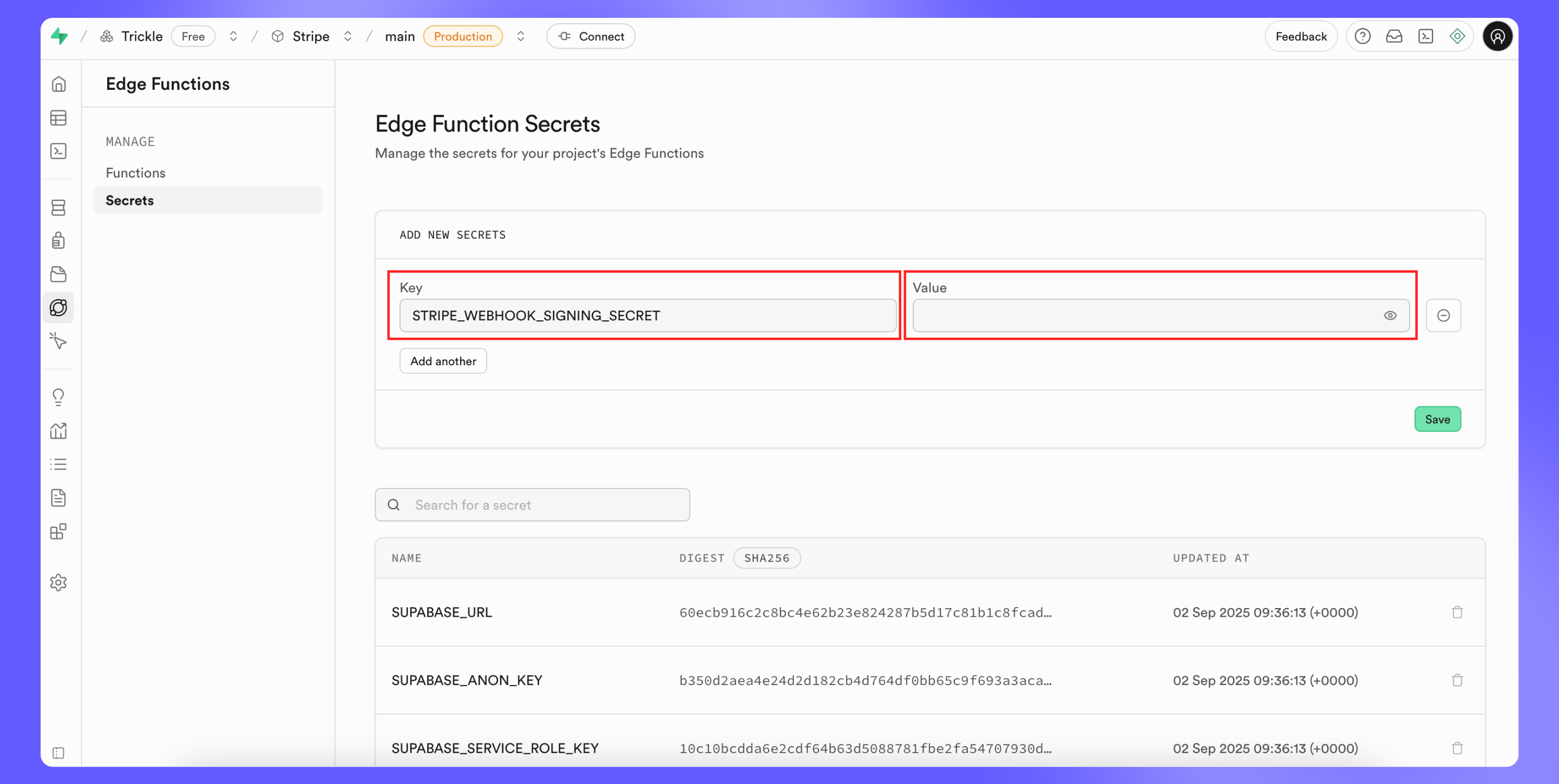
 * In Supabase, go to environment variables and set:
Key: `STRIPE_WEBHOOK_SIGNING_SECRET` Value:` [your secret from the previous step]`
* In Supabase, go to environment variables and set:
Key: `STRIPE_WEBHOOK_SIGNING_SECRET` Value:` [your secret from the previous step]`
 * Paste the Supabase Edge Function code into **Trickle AI**.
`“This is a Supabase Edge Function for handling Stripe webhook events. Please modify it so that when a checkout.session.completed event is received, it updates the user’s subscription status to true in the Supabase database.”`
You can also paste an example Stripe event payload to help AI better understand the context.
* Copy the code from Trickle AI and paste it to Supabase Edge function.
* Test using **Stripe’s test mode**, with card number `4242 4242 4242 4242.`
* Fully test the integration across user flows, including:
* Payment initiation
* Stripe checkout completion
* Webhook event handling
* Subscription status update in Supabase
* Feature access control in your Trickle app
* Paste the Supabase Edge Function code into **Trickle AI**.
`“This is a Supabase Edge Function for handling Stripe webhook events. Please modify it so that when a checkout.session.completed event is received, it updates the user’s subscription status to true in the Supabase database.”`
You can also paste an example Stripe event payload to help AI better understand the context.
* Copy the code from Trickle AI and paste it to Supabase Edge function.
* Test using **Stripe’s test mode**, with card number `4242 4242 4242 4242.`
* Fully test the integration across user flows, including:
* Payment initiation
* Stripe checkout completion
* Webhook event handling
* Subscription status update in Supabase
* Feature access control in your Trickle app