> ## Documentation Index
> Fetch the complete documentation index at: https://help.trickle.so/llms.txt
> Use this file to discover all available pages before exploring further.
# Versions & Multi-page Projects
> Explore how Trickle Magic Canvas unites version history with multi-page management. Restore past iterations, generate new pages, and structure your applications effortlessly within a single visual workspace.
If you have any questions or need further assistance, don’t hesitate to [join our Discord](https://discord.com/invite/AD44k7hVSY) community. We’re always there to connect with you and offer support!
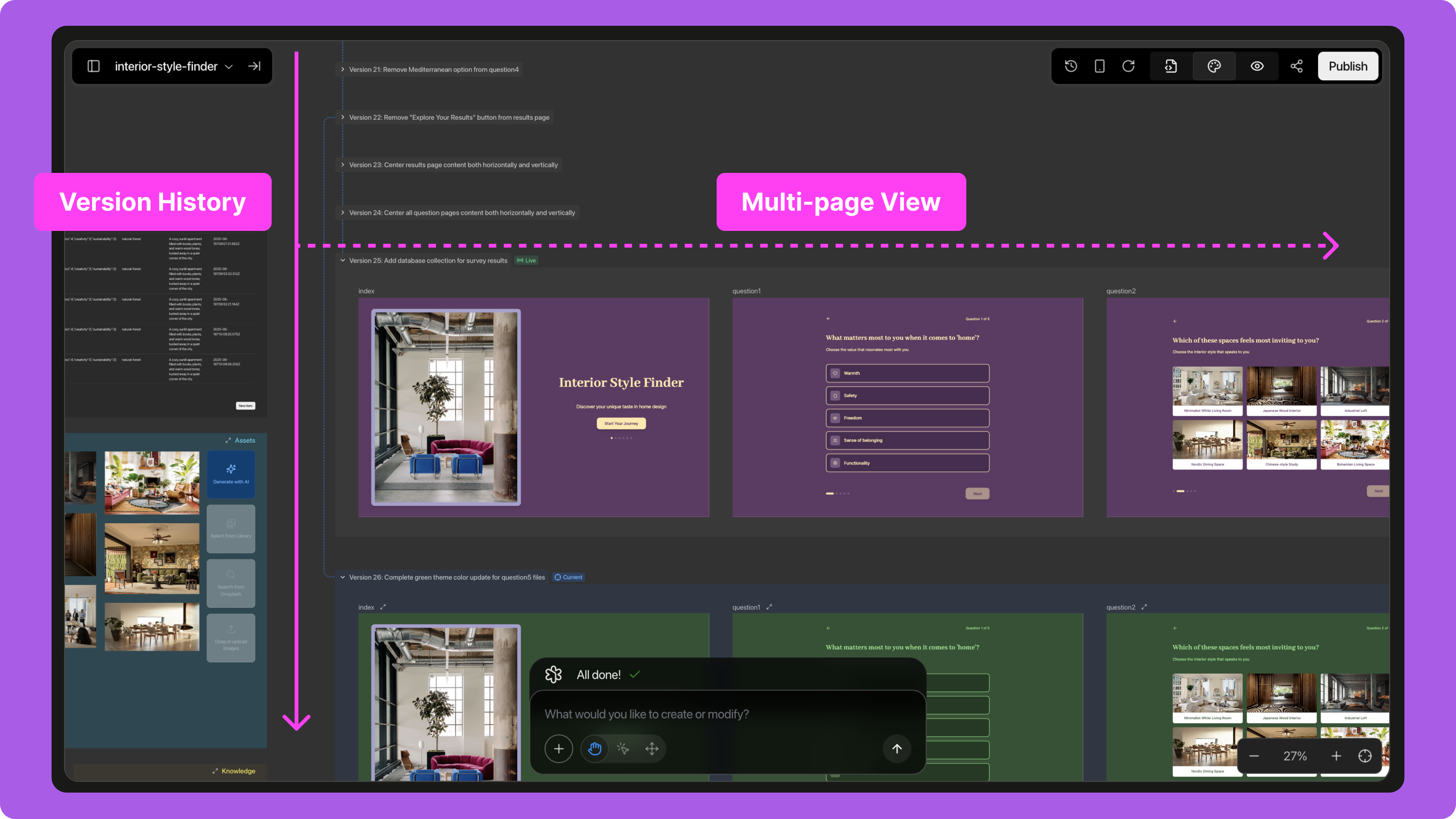
In Trickle, **Magic Canvas** is not just a visual canvas—it is a workspace that carries both the **dimension of time** and the **dimension of space**.
* **Time Dimension**: The system automatically records every iteration, preserving a complete history so you can revisit and restore at any time.
* **Space Dimension**: On the same canvas, you can create, organize, and edit multiple pages, making the structure of your application clear at a glance.
It is precisely this combination of **time + space** that makes Magic Canvas a true context container, enabling creation and iteration to flow more naturally.
 ## **Roll Back to Previous Versions**
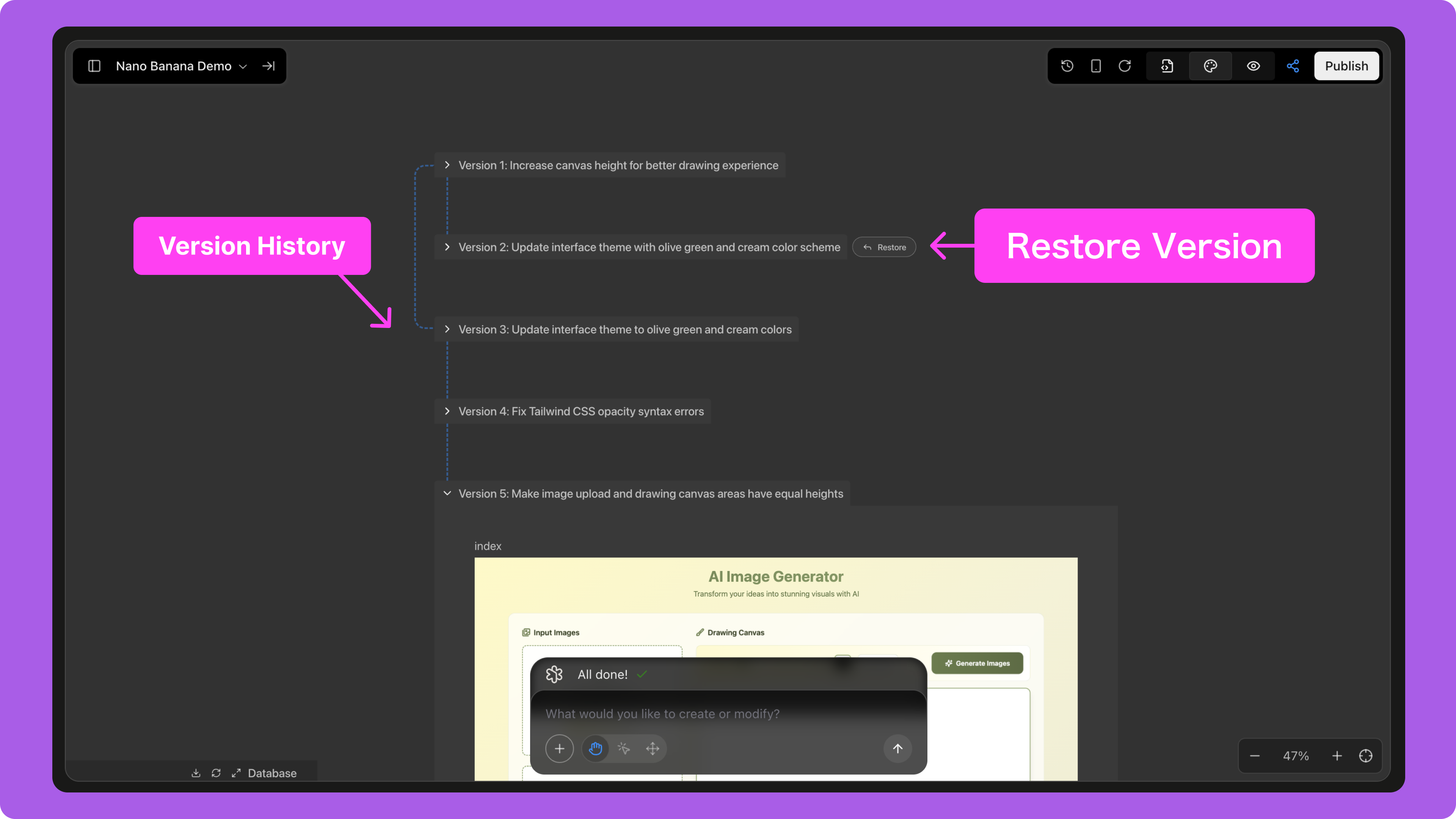
Trickle automatically saves your project’s version history, allowing you to easily revisit and restore any version:
1. Open the project and click the **History** icon in the top toolbar.
2. Browse historical versions, select the one you want to review, and preview its details in the code panel.
3. Click the **Restore** button to roll back to that version in one step.
This feature helps you undo unwanted changes or quickly recover a previous design, ensuring that the project’s evolution always remains under your control.
## **Roll Back to Previous Versions**
Trickle automatically saves your project’s version history, allowing you to easily revisit and restore any version:
1. Open the project and click the **History** icon in the top toolbar.
2. Browse historical versions, select the one you want to review, and preview its details in the code panel.
3. Click the **Restore** button to roll back to that version in one step.
This feature helps you undo unwanted changes or quickly recover a previous design, ensuring that the project’s evolution always remains under your control.
 ## **Building Multi-Page Projects**
Magic Canvas allows you to create and manage multi-page applications on the same canvas:
* **New Project**: In your prompt, specify the pages you need (e.g., Home, Product Detail, About, Contact). AI will generate them all at once and automatically set up navigation links between pages.
* **Extend an Existing Project**: In an existing project, simply prompt AI to add a new page. Describe its content or purpose, and the agent will generate it within the current canvas and integrate it into the overall structure.
This approach makes the logic of a website or application visible and intuitive. You can organize pages like puzzle pieces while still leveraging AI’s generation and reasoning capabilities.
Magic Canvas combines **spatial page organization** with **temporal version evolution**:
* Spatially, you can clearly build and expand multi-page applications.
* Temporally, you can roll back to any historical version at any time.
This integration transforms creation from a linear prompt-driven process into a dynamic unfolding journey. Whether for product iteration or creative exploration, Magic Canvas provides full contextual support and complete control.
## **Building Multi-Page Projects**
Magic Canvas allows you to create and manage multi-page applications on the same canvas:
* **New Project**: In your prompt, specify the pages you need (e.g., Home, Product Detail, About, Contact). AI will generate them all at once and automatically set up navigation links between pages.
* **Extend an Existing Project**: In an existing project, simply prompt AI to add a new page. Describe its content or purpose, and the agent will generate it within the current canvas and integrate it into the overall structure.
This approach makes the logic of a website or application visible and intuitive. You can organize pages like puzzle pieces while still leveraging AI’s generation and reasoning capabilities.
Magic Canvas combines **spatial page organization** with **temporal version evolution**:
* Spatially, you can clearly build and expand multi-page applications.
* Temporally, you can roll back to any historical version at any time.
This integration transforms creation from a linear prompt-driven process into a dynamic unfolding journey. Whether for product iteration or creative exploration, Magic Canvas provides full contextual support and complete control.