> ## Documentation Index
> Fetch the complete documentation index at: https://help.trickle.so/llms.txt
> Use this file to discover all available pages before exploring further.
# Assets & Image Generation
> Learn how to manage assets in Trickle by uploading custom visuals, generating images with AI, using Unsplash references, or sketching wireframes. Create high-quality visuals and MVP websites seamlessly.
If you have any questions or need further assistance, don’t hesitate to [join our Discord](https://discord.com/invite/AD44k7hVSY) community. We’re always there to connect with you and offer support!
## Assets
When building a website or application, assets are an indispensable part of the process. In Trickle, you can not only upload brand visuals, portfolio pieces, or product photos, but also use the built-in AI image generation features to create and refine the visuals you need—all in one place—making the creative workflow more efficient.
### **Uploading Assets**
You can upload and customize design assets to give your project a unique style. Follow these steps to add and manage assets:
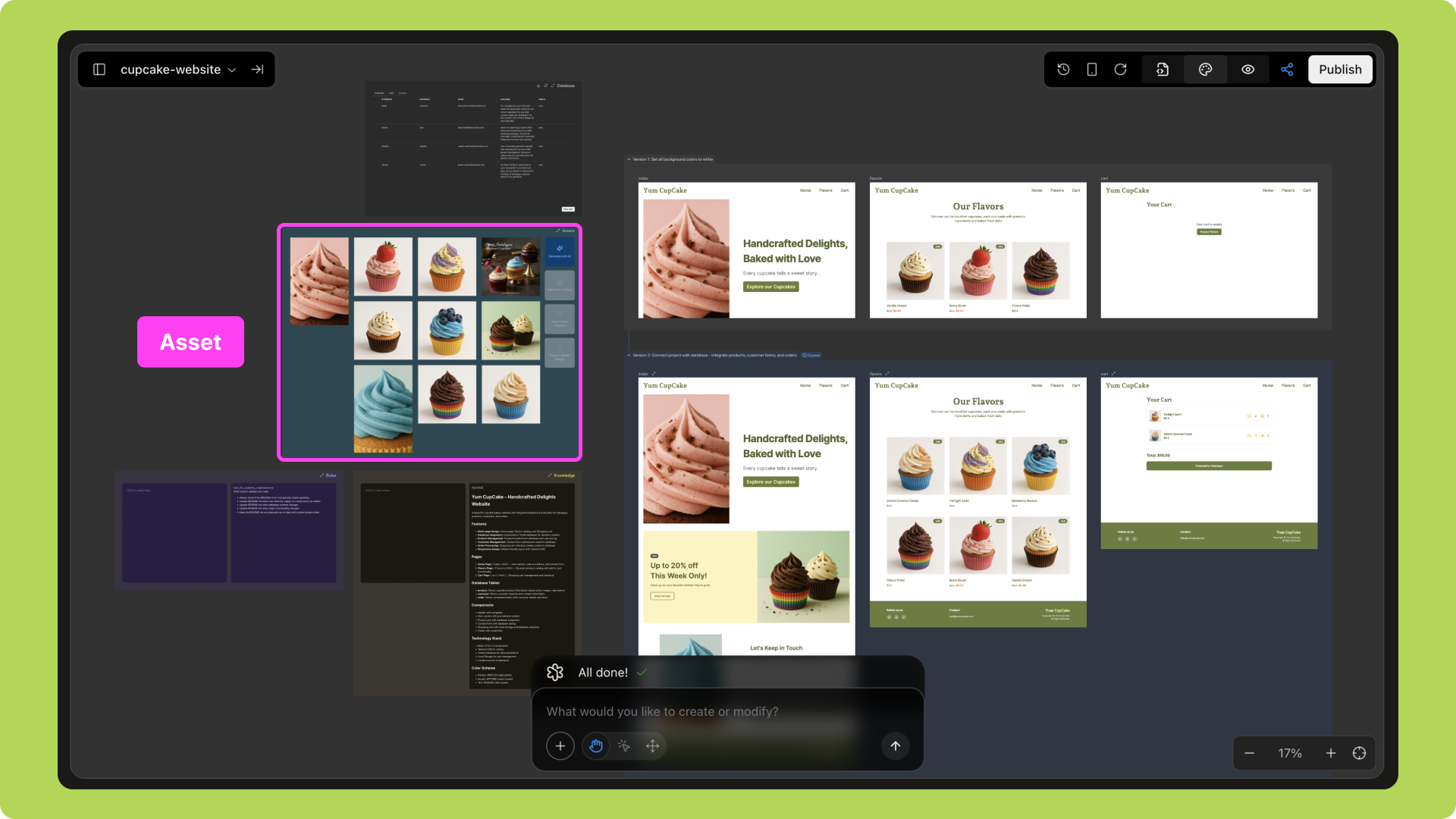 * Add your own images, stickers, or GIFs directly into the project;
* Or browse the built-in library and use high-quality professional photos from Unsplash.
* Enter a prompt and let AI generate exclusive designs based on your ideas.
* Use intuitive prompts to place assets precisely in the designated position within the project;
* Make detailed adjustments to ensure the design matches your goals perfectly.
* Add your own images, stickers, or GIFs directly into the project;
* Or browse the built-in library and use high-quality professional photos from Unsplash.
* Enter a prompt and let AI generate exclusive designs based on your ideas.
* Use intuitive prompts to place assets precisely in the designated position within the project;
* Make detailed adjustments to ensure the design matches your goals perfectly.
 By combining your creativity with Trickle’s tools, you can easily create a fully personalized design.
### **Using AI for Asset Generation and Creation**
**Method 1: Prompt to Image**
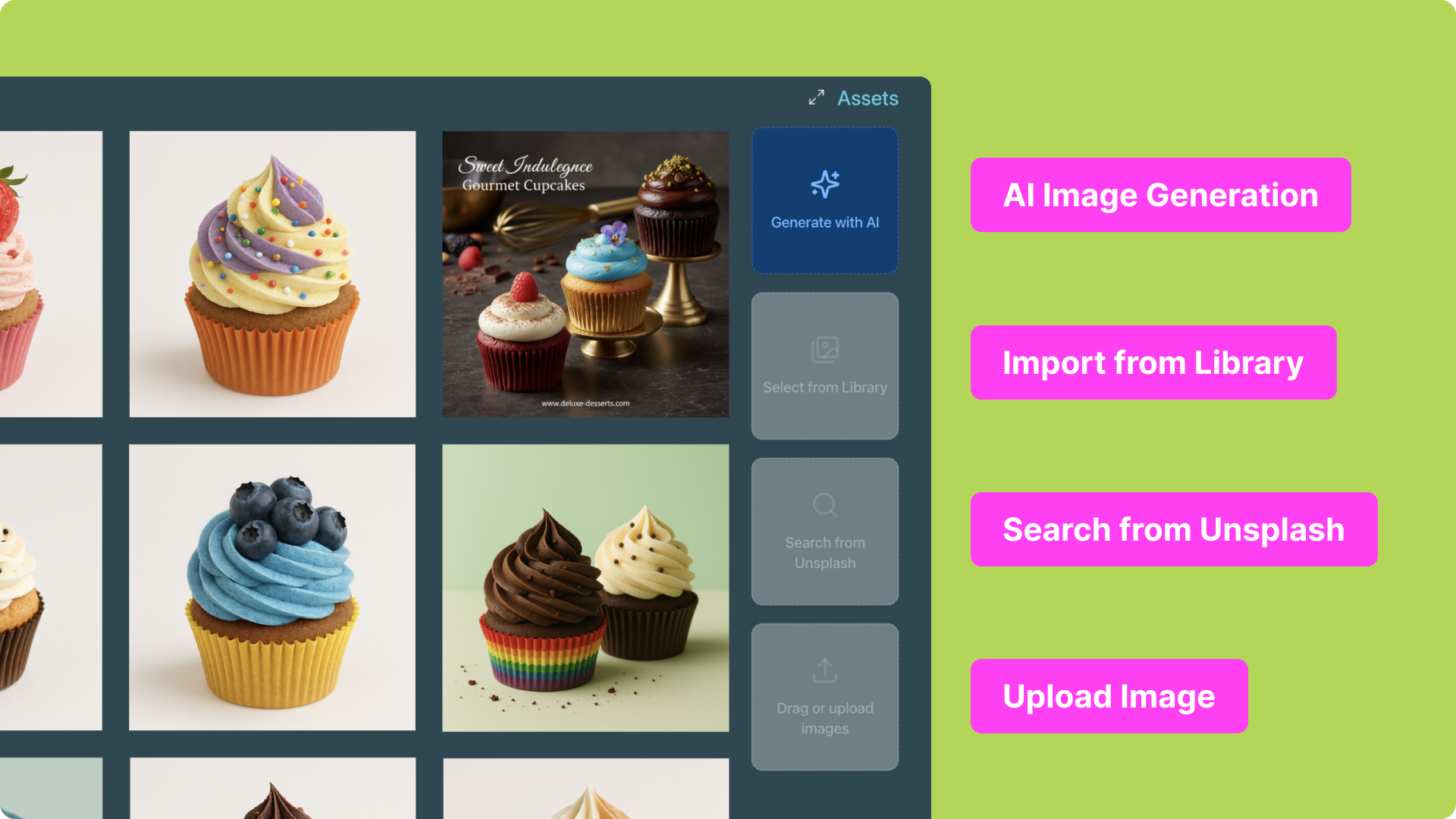
You can enter both website prompts and image prompts in a single request. AI will instantly generate results and place them directly into the page. **Batch image generation** is supported. You can also enter prompts directly in Asset to quickly generate and insert visuals.
**Option 1: Website + Image Prompt**
Enter a website prompt + an image prompt (optional: add a reference image).
AI generates results in one step and automatically places them in the project.
Supports batch output of multiple images.
By combining your creativity with Trickle’s tools, you can easily create a fully personalized design.
### **Using AI for Asset Generation and Creation**
**Method 1: Prompt to Image**
You can enter both website prompts and image prompts in a single request. AI will instantly generate results and place them directly into the page. **Batch image generation** is supported. You can also enter prompts directly in Asset to quickly generate and insert visuals.
**Option 1: Website + Image Prompt**
Enter a website prompt + an image prompt (optional: add a reference image).
AI generates results in one step and automatically places them in the project.
Supports batch output of multiple images.
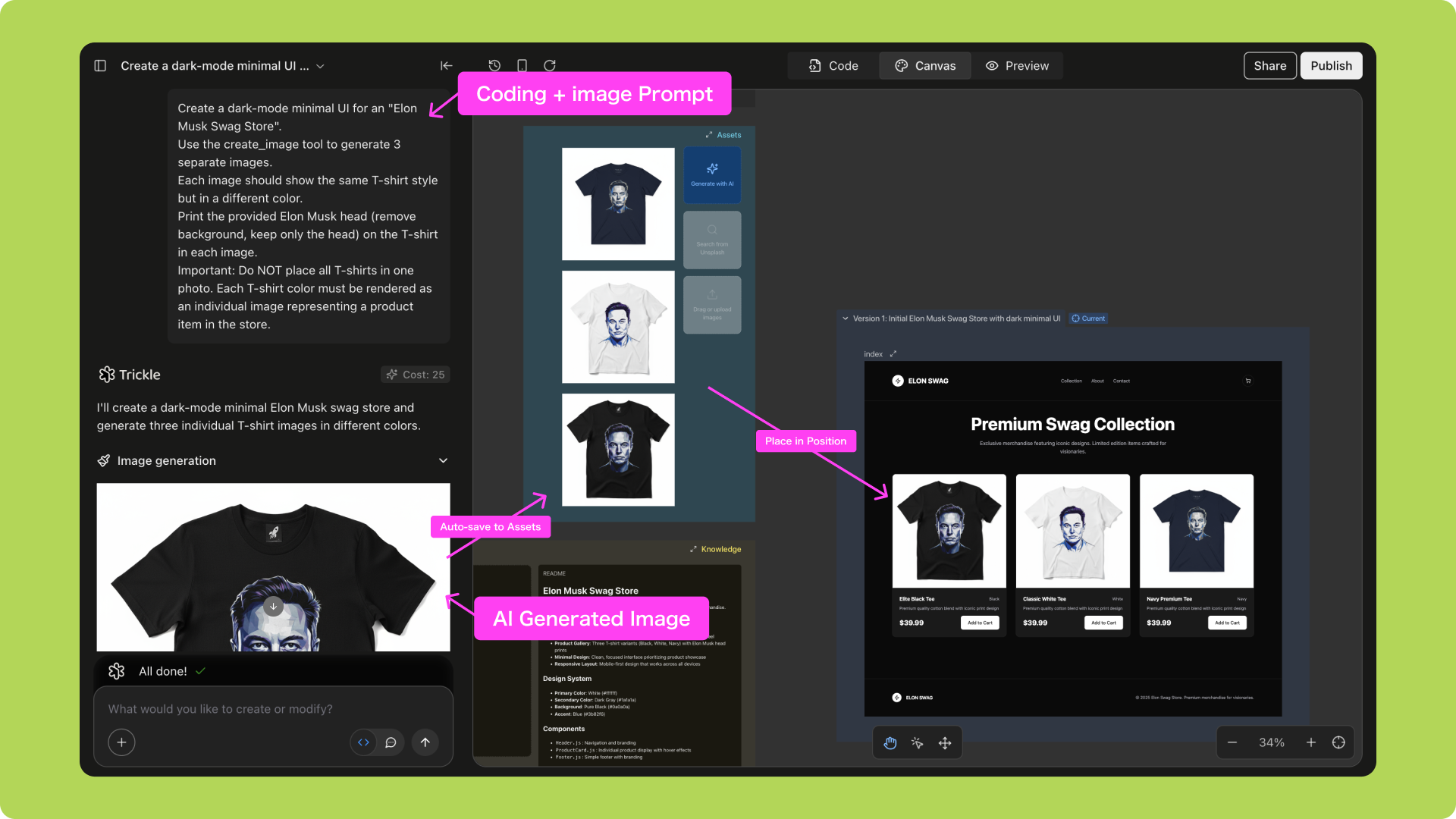 **Option 2: Generate from Asset**
In Asset, click **Generate with AI**.
Enter a prompt, and AI quickly generates images and places them in the specified location.
**Option 2: Generate from Asset**
In Asset, click **Generate with AI**.
Enter a prompt, and AI quickly generates images and places them in the specified location.
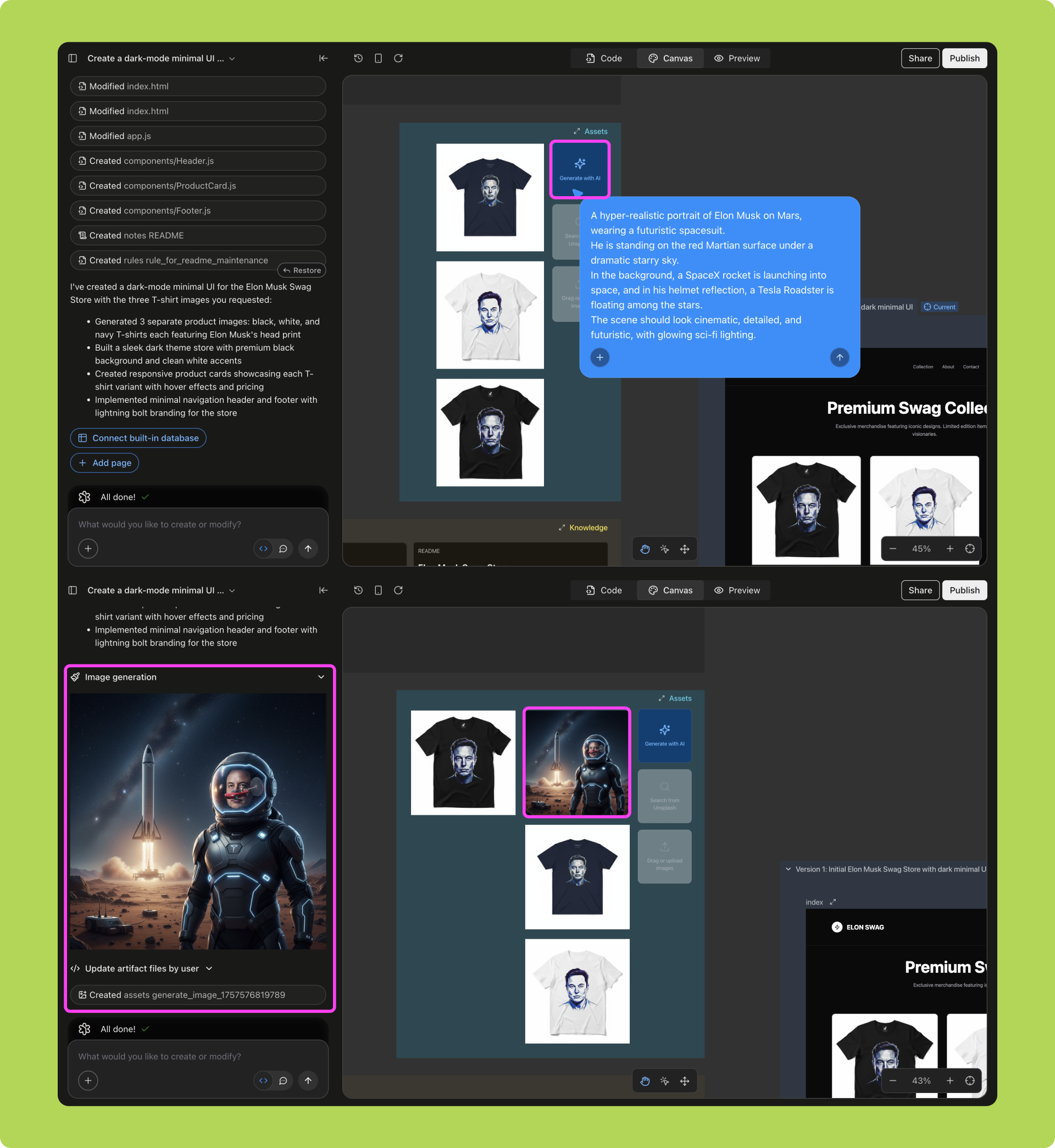 **Method 2: Get Reference Images from Unsplash**
You can search Unsplash images directly within Asset, choose a reference image, and then use the built-in AI image generator to create a clearer, more unique version.
Open Unsplash search in Asset;
**Method 2: Get Reference Images from Unsplash**
You can search Unsplash images directly within Asset, choose a reference image, and then use the built-in AI image generator to create a clearer, more unique version.
Open Unsplash search in Asset;
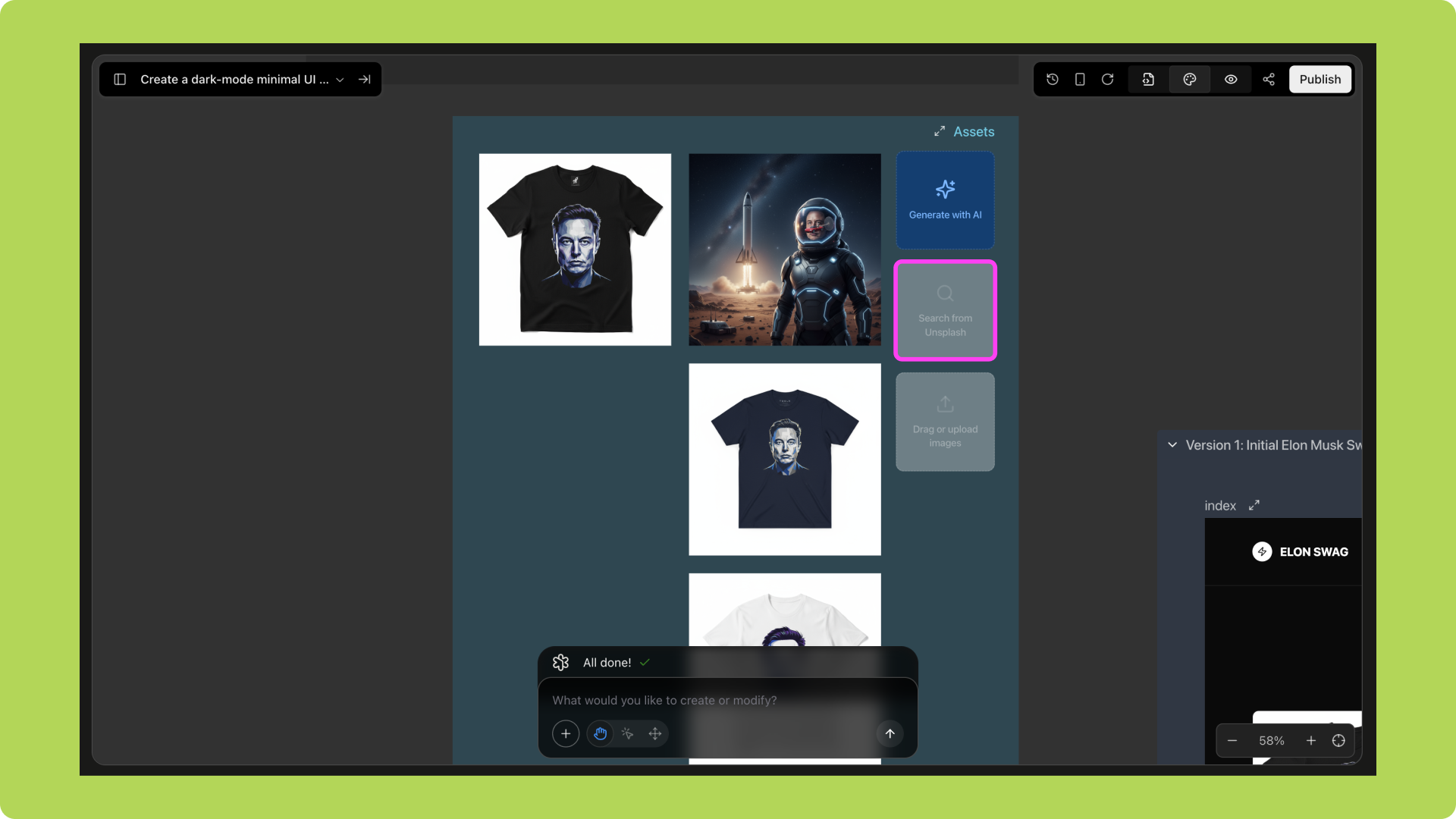 Select an image you like;
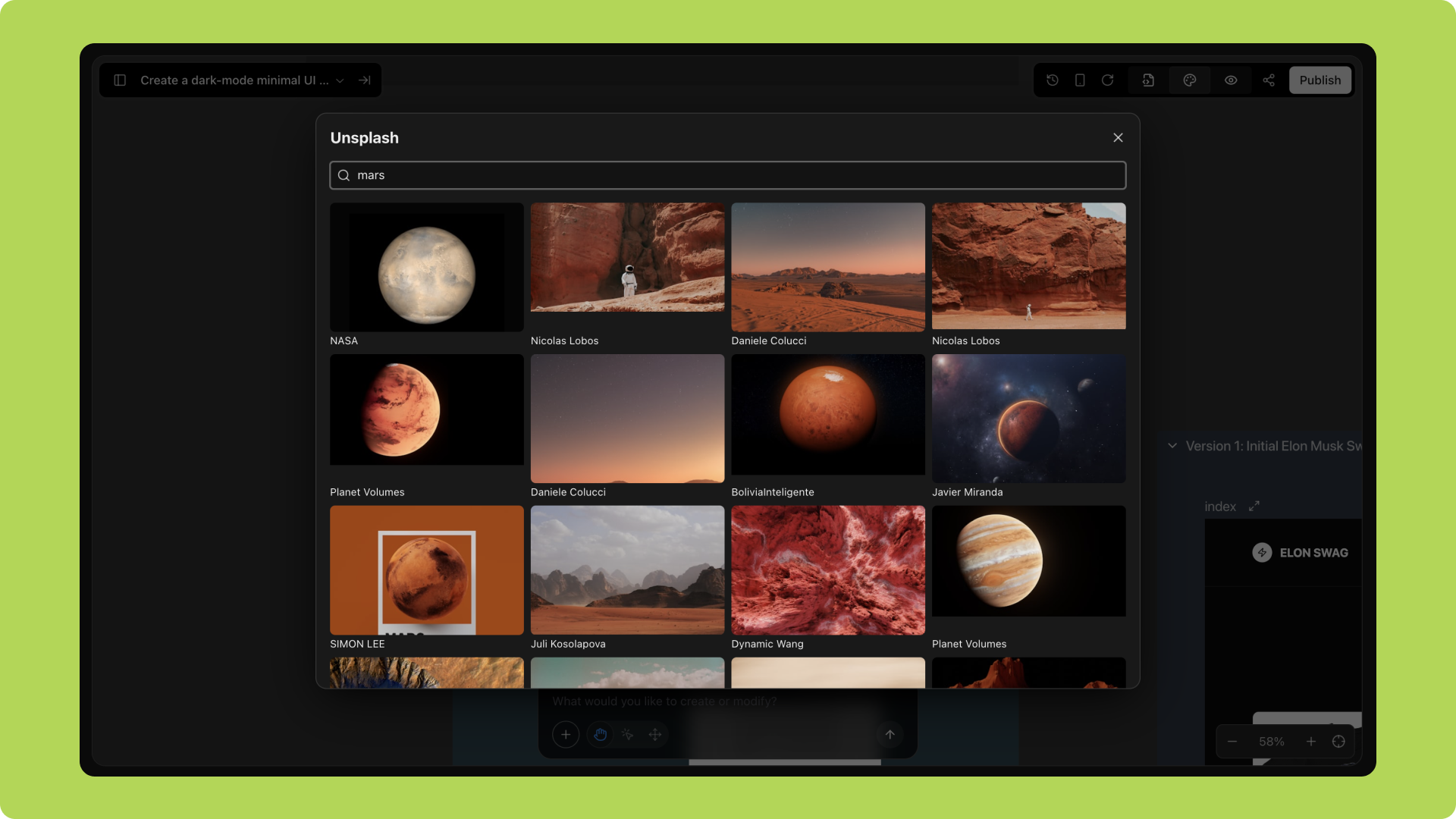 Click the **Compose** icon;
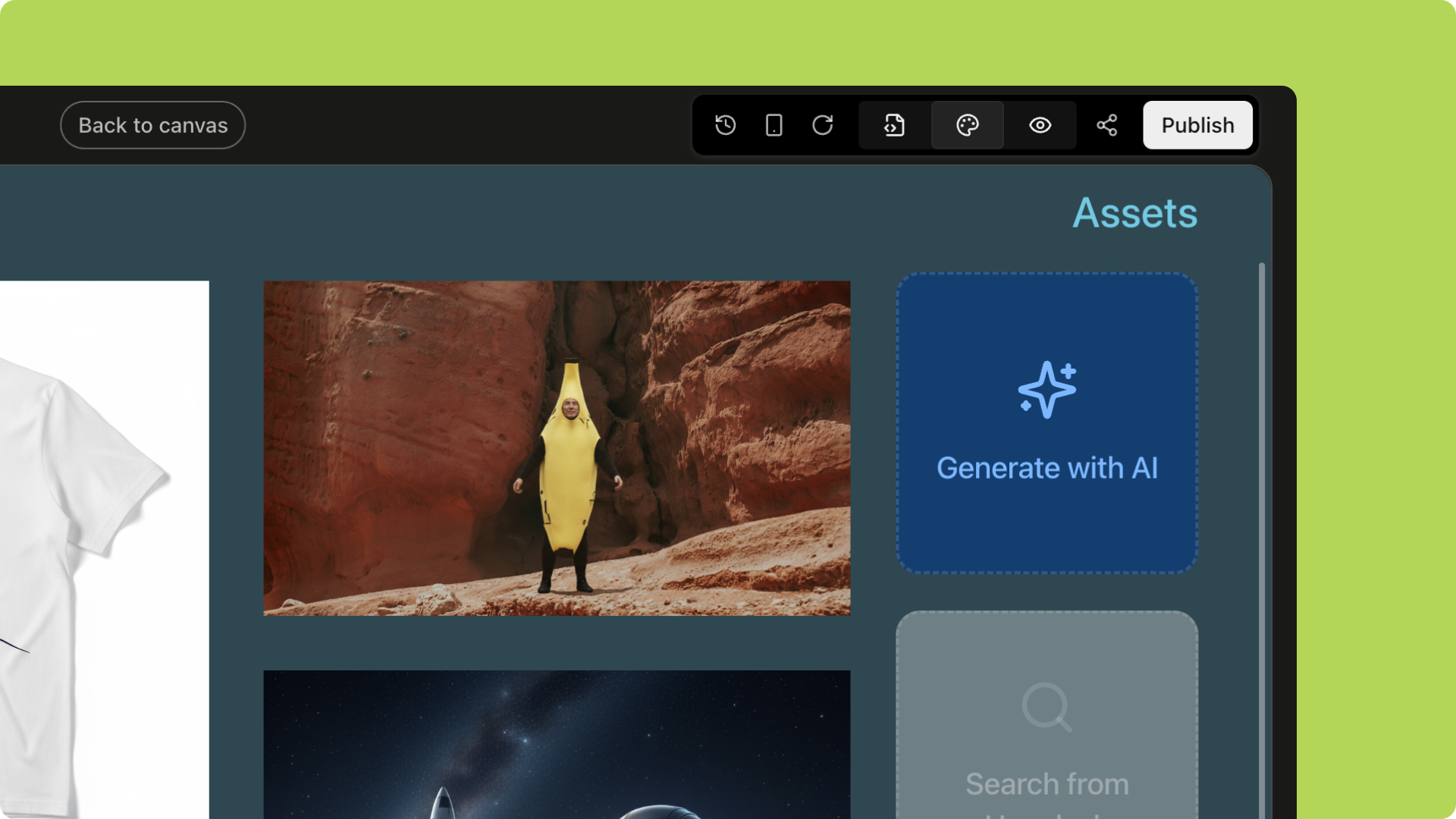
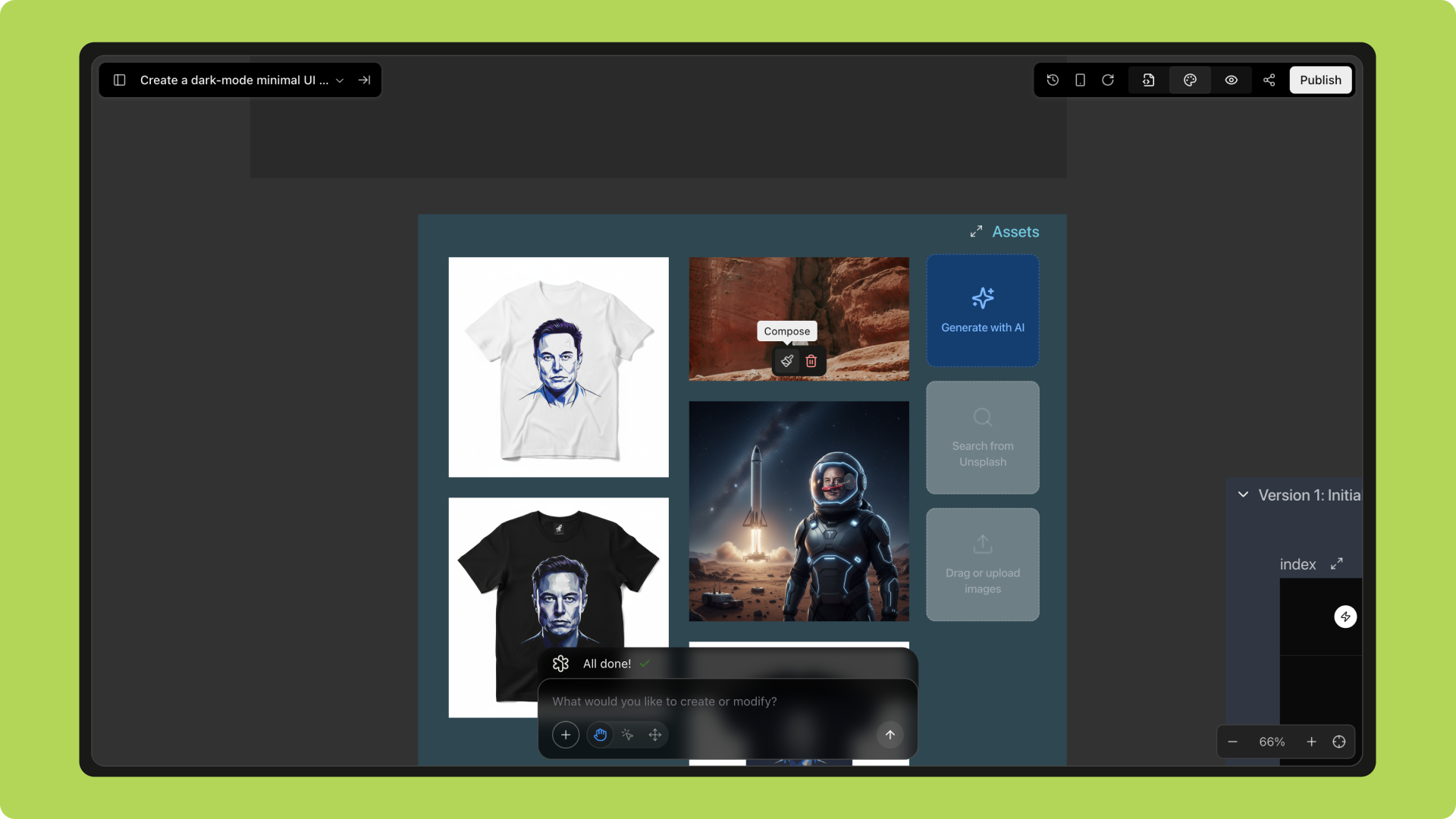 Enter a prompt to generate new variations;
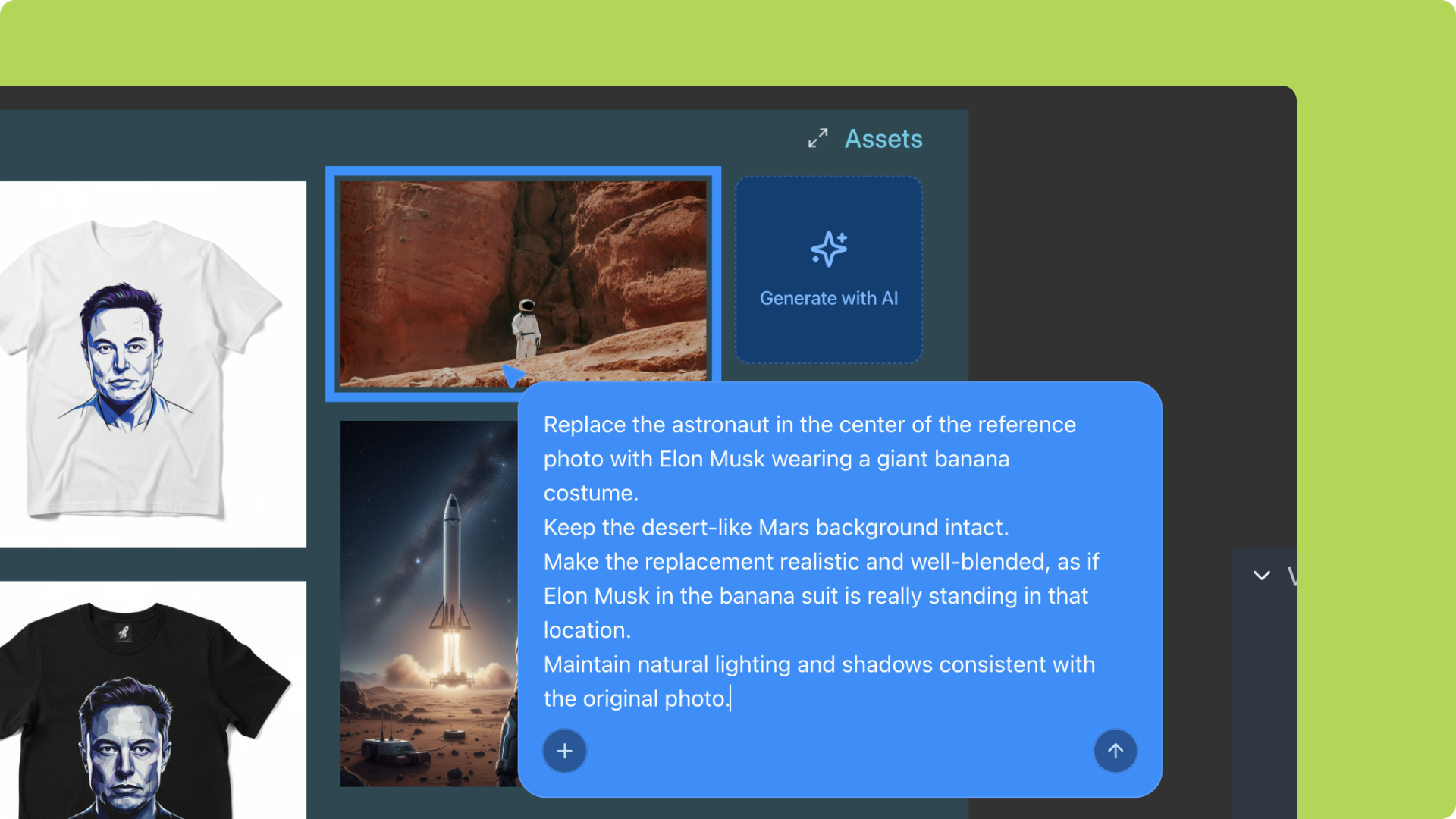 Insert the generated results directly into the project.
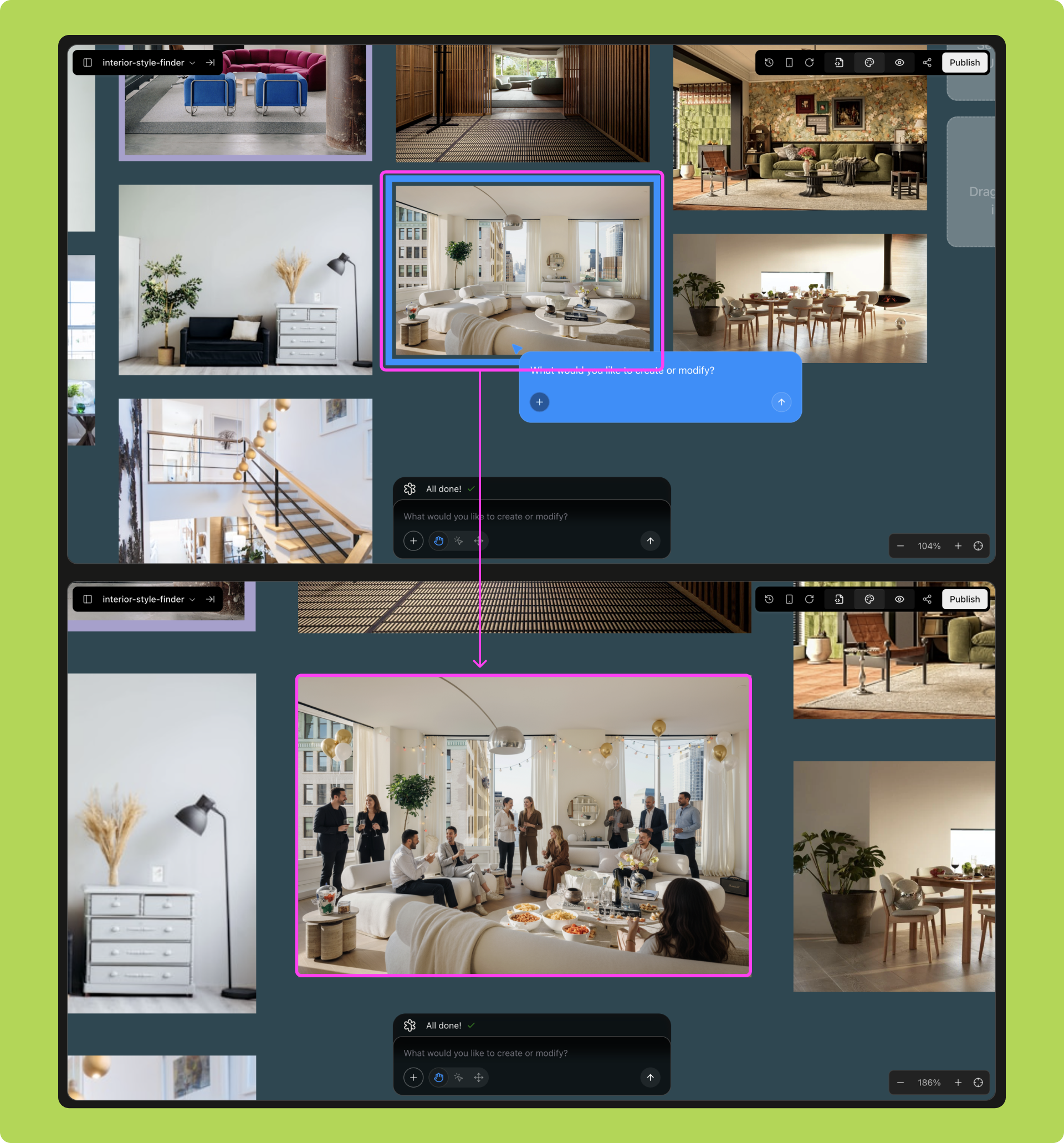
 You can also upload your own images into Asset for secondary creation. For example, upload a living room photo and use prompts to generate different styled scenes—perfect for advertising or e-commerce visuals.
 **Method 3: Whiteboard Drawing**
You can freely sketch on the whiteboard, and AI will transform your drawings into finished images—or even a complete website—bringing imagination instantly to life.
**Option 1: Hand-Drawn Sketch → AI Image**
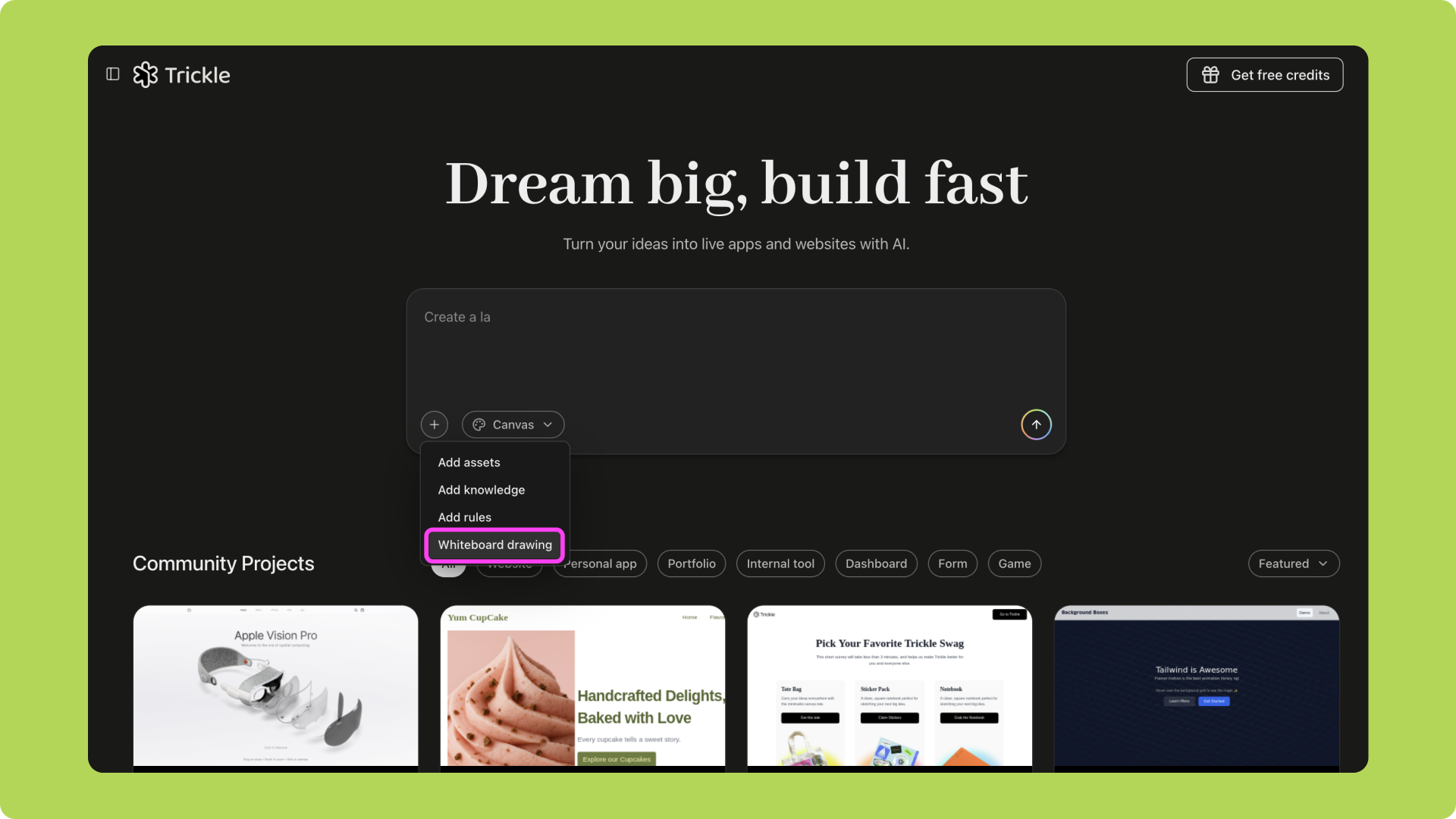
Open Whiteboard Drawing;
**Method 3: Whiteboard Drawing**
You can freely sketch on the whiteboard, and AI will transform your drawings into finished images—or even a complete website—bringing imagination instantly to life.
**Option 1: Hand-Drawn Sketch → AI Image**
Open Whiteboard Drawing;
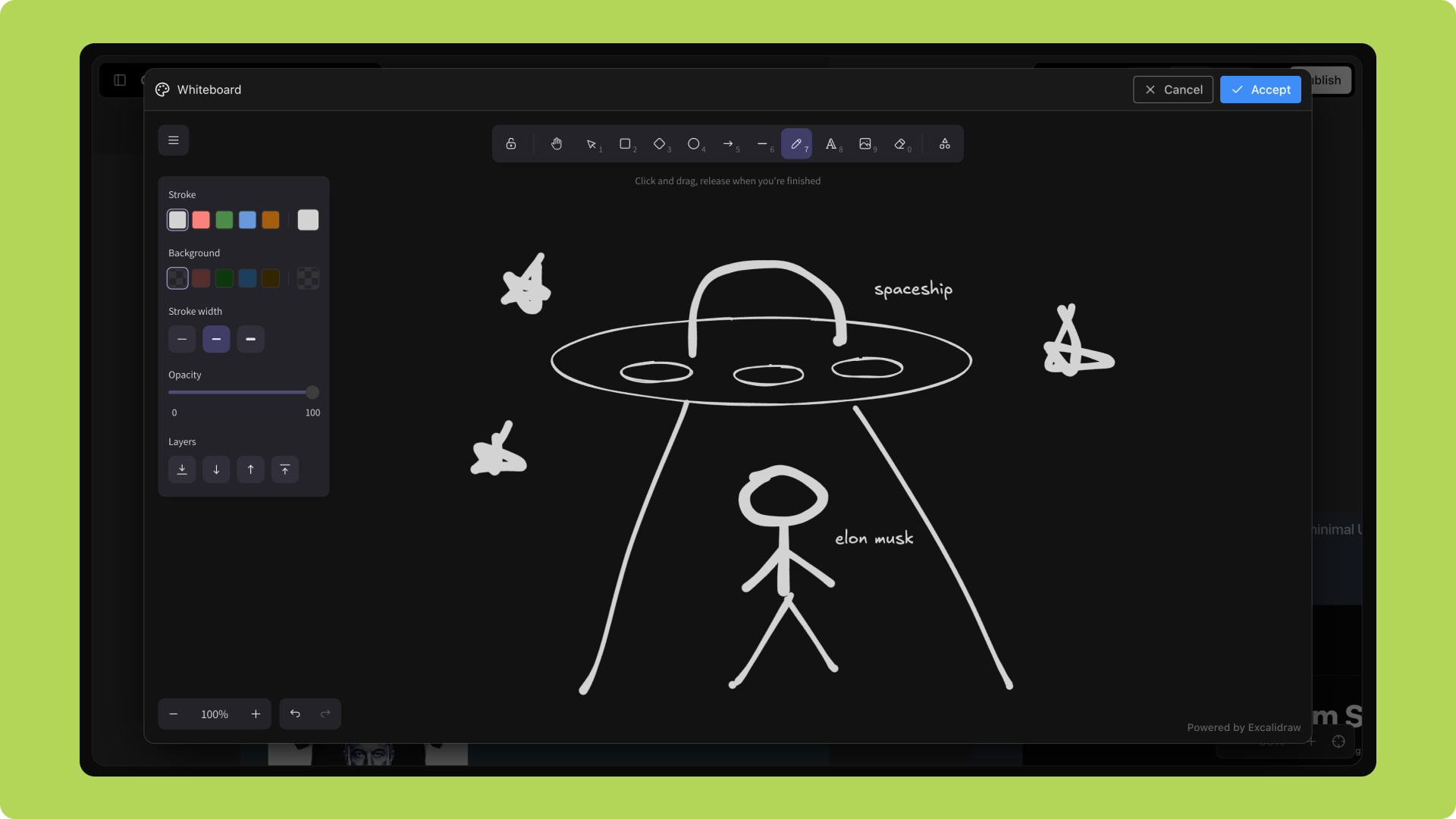
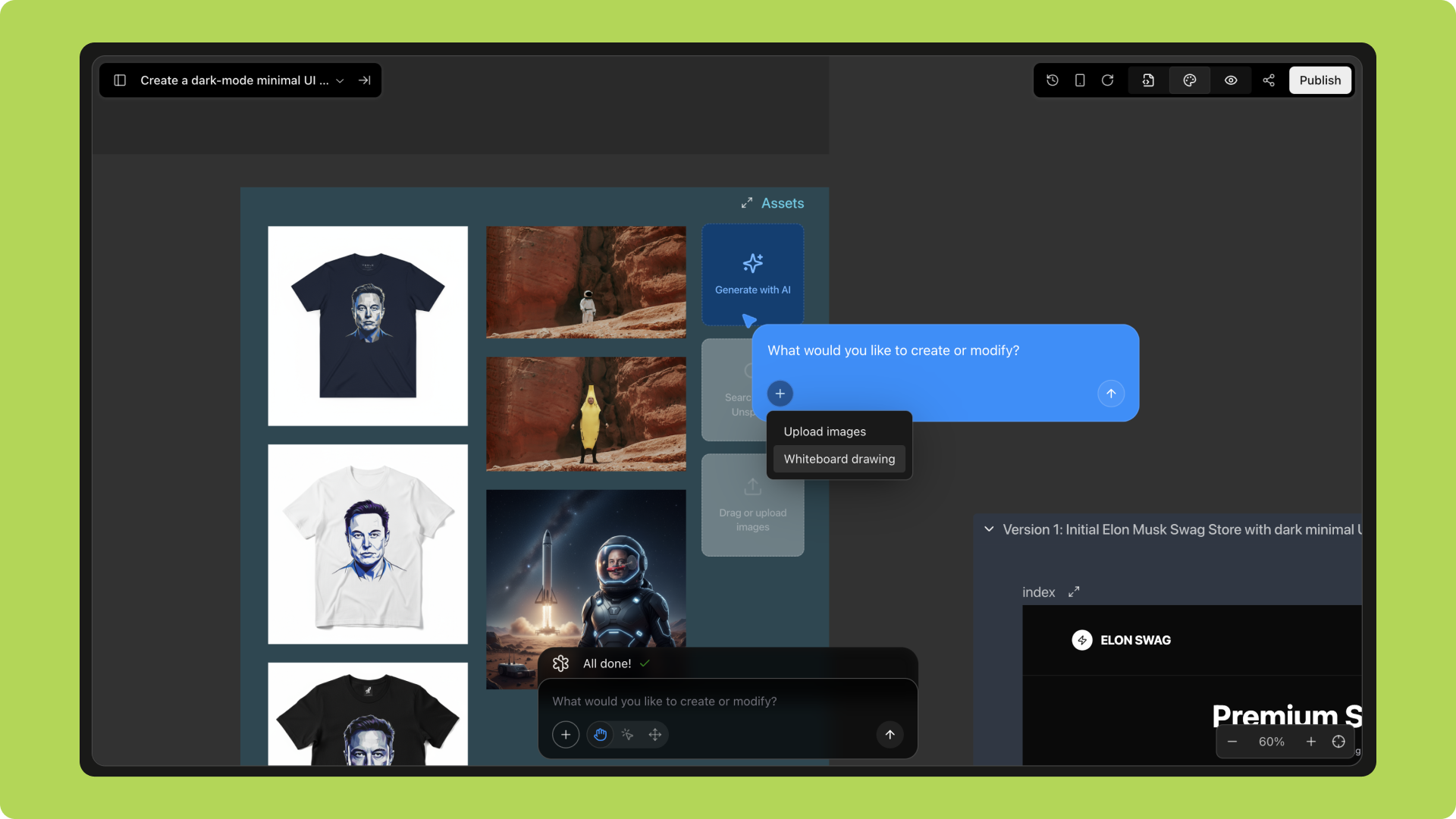 Draw your creative sketch on the whiteboard;
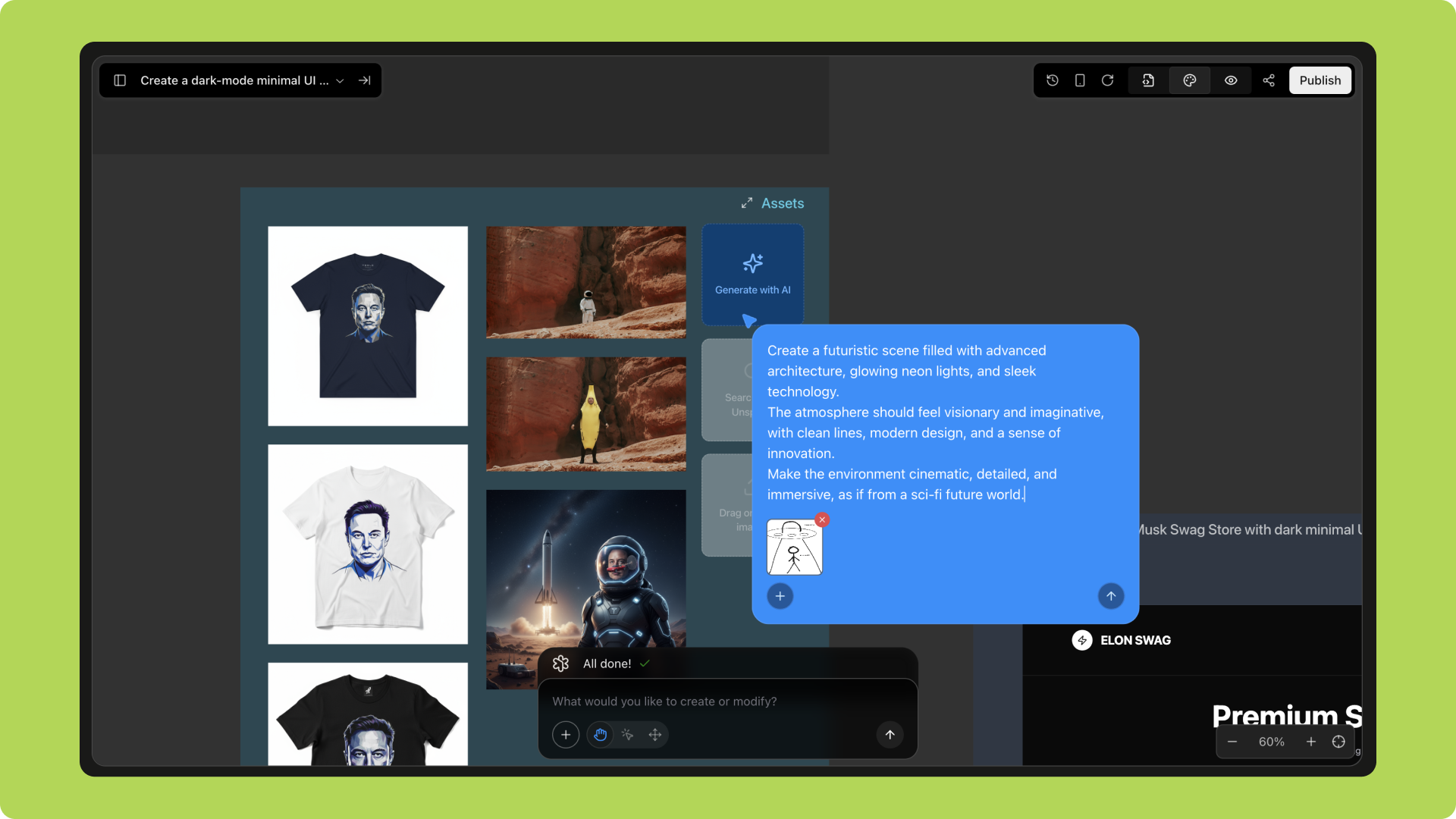
 Add style or layout instructions;
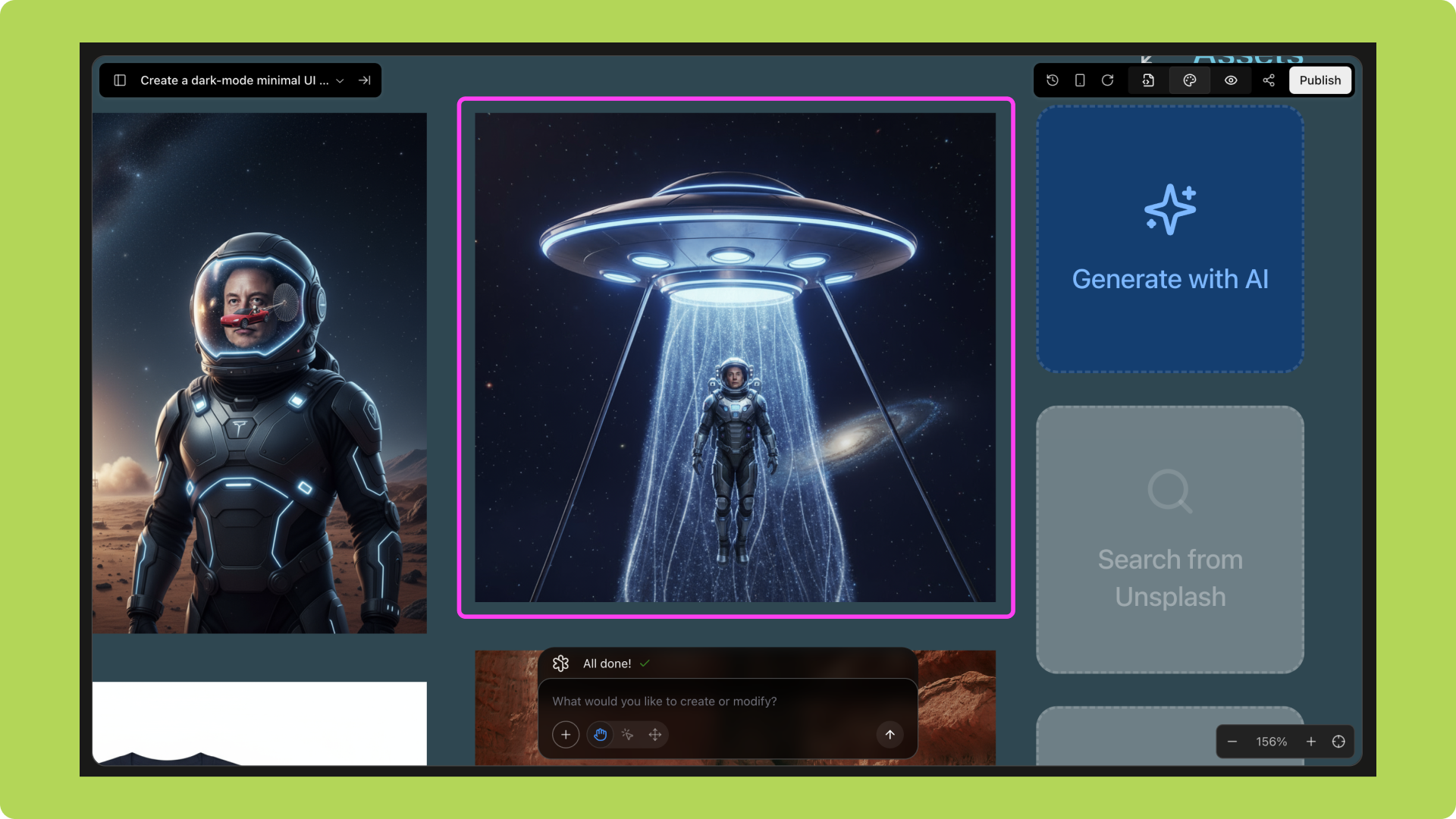
 AI generates the corresponding image, which can be inserted directly into the project.
 **Option 2: Wireframe → MVP Website**
Open Whiteboard Drawing and enter website style/design requirements;
**Option 2: Wireframe → MVP Website**
Open Whiteboard Drawing and enter website style/design requirements;
 Draw the website wireframe on the whiteboard;
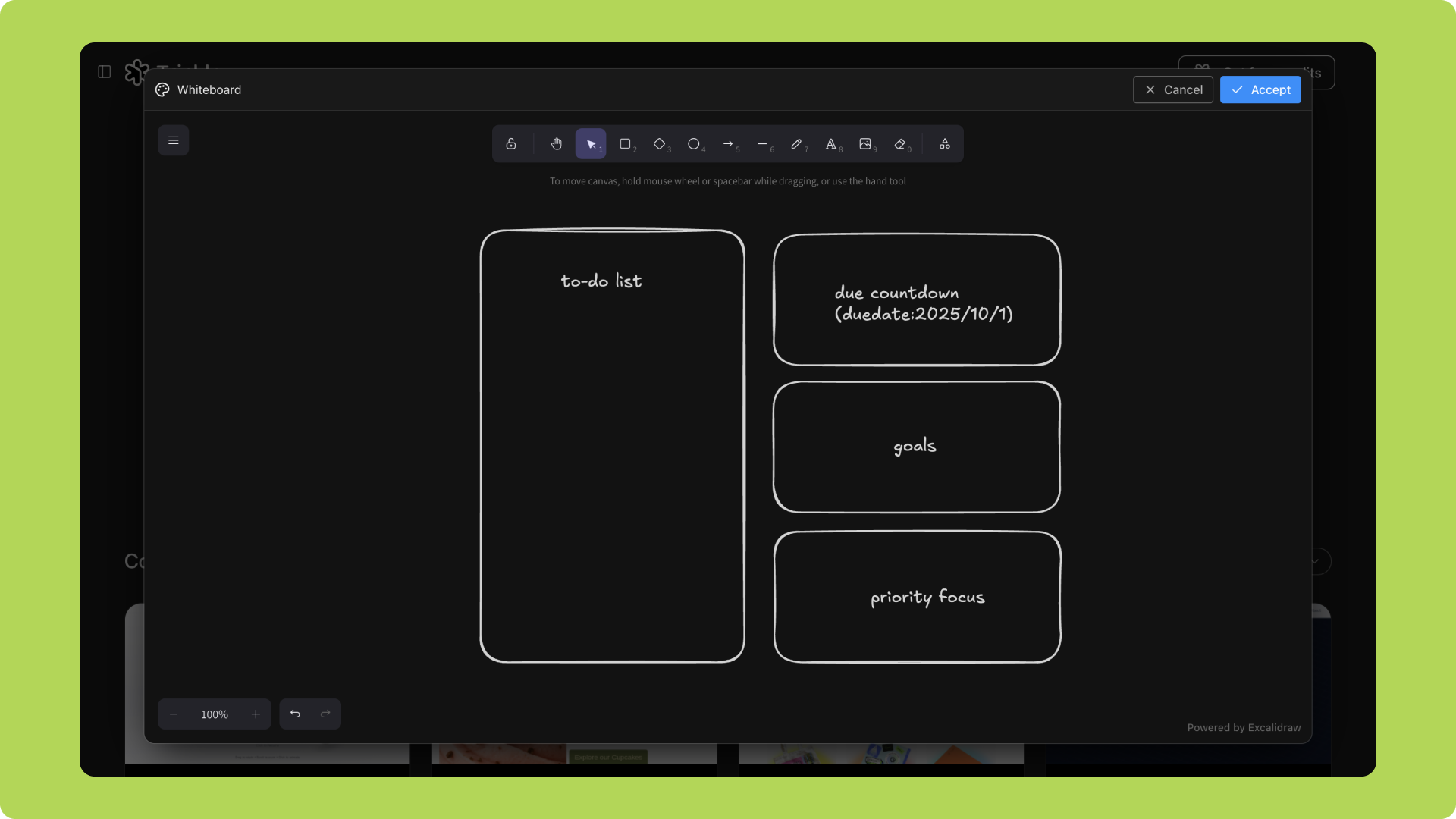 AI generates a functional MVP website based on the wireframe and prompts.