> ## Documentation Index
> Fetch the complete documentation index at: https://help.trickle.so/llms.txt
> Use this file to discover all available pages before exploring further.
# Image Mode
> Discover Trickle Image Mode, an AI-driven workspace for generating, editing, and managing visuals. Use Nano-Banana to create high-quality images and integrate them seamlessly into your projects.
## **Image Mode: AI-Powered Visual Creation in Trickle**
**Image mode** is one of Trickle’s core features, providing a complete workflow for visual creation and content generation. In this mode, you can not only upload your own materials but also use Trickle’s built-in AI image model **Nano-Banana** to generate entirely new visuals from scratch.
Unlike traditional image editors, Image mode combines intuitive interaction with powerful AI, enabling you to go from initial idea to high-quality visual assets in one seamless flow.
With Image mode, you can:
* **Generate new images**: Get multiple visuals from simple or detailed prompts.
* **Edit existing images**: Apply style transfer, background replacement, local fixes, or element additions.
* **Manage assets**: All generated and edited images are automatically saved into the global **Library** for easy reuse in Canvas projects.
Image mode consolidates fragmented image needs into a unified workflow—from inspiration, generation, and editing, to storage and project application. It’s more than an image editor: it’s an AI-powered visual production system that delivers consistent, high-quality, ready-to-use assets.
### **How to Use Image Mode**
From the homepage, switch to **Image mode**.
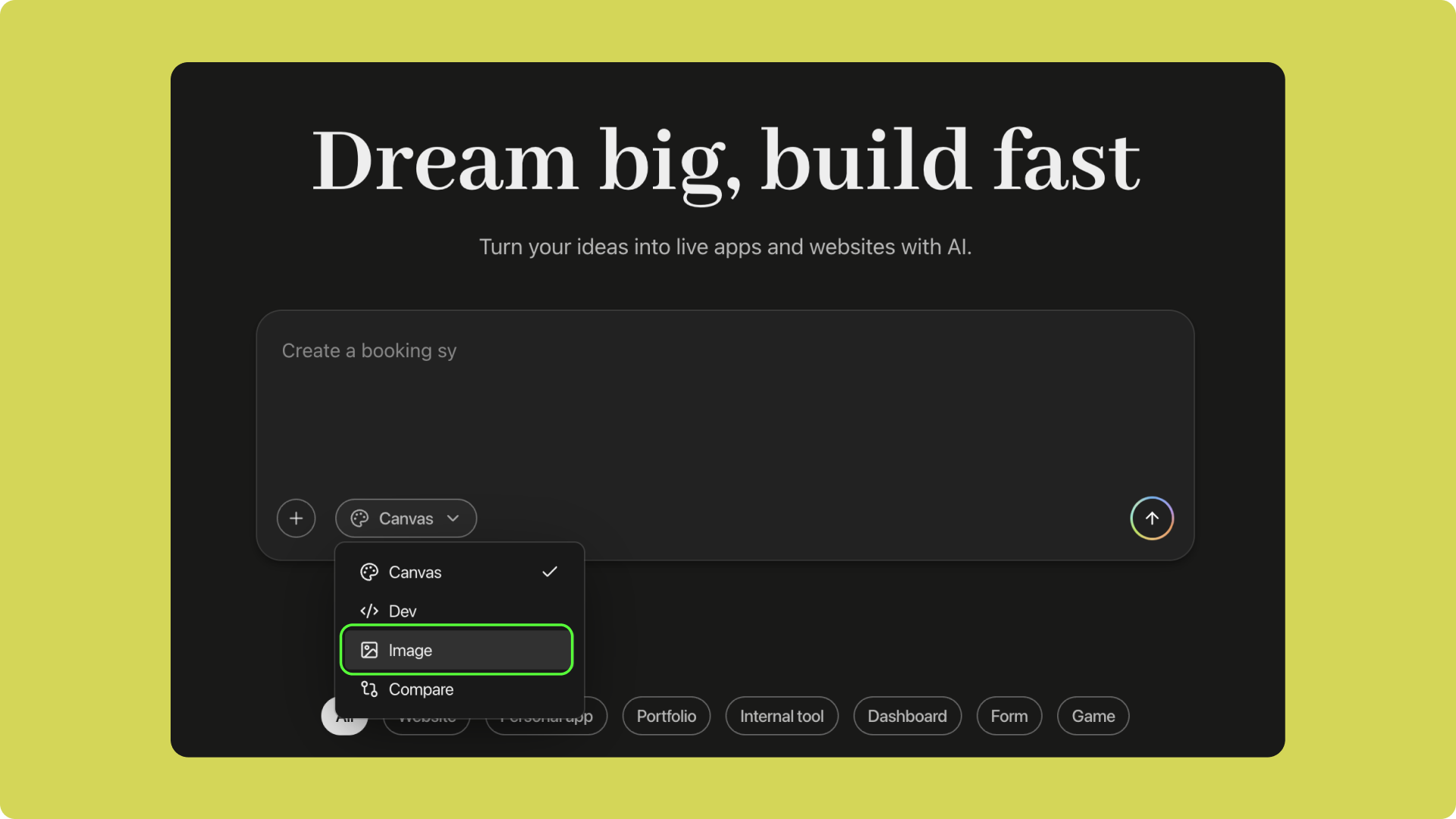 * Type a prompt, and AI generates images based on your description.
* Or upload a local image as your starting material.
* Select an uploaded or generated image.
* Modify it with a new prompt—change style, adjust mood, or add elements.
* Combine multiple images or create variations.
All images generated or edited are automatically stored in the project’s **Library** for centralized management.
In your project, open **Assets** → **Select from Library**, choose the image, and assign a name for quick reuse.
### **Image Mode Use Cases Overview**
After learning the basic operations of Image mode, let’s look at two specific examples to demonstrate its application scenarios. These will help you better understand the value and usage of this feature:
* **E-commerce and Marketing Ads**: Quickly turn product prototypes into ad-style materials and apply them to campaign pages.
* **Personal Bio / Portfolio**: Combine images with personal details to generate a polished homepage or portfolio.
**Example: E-commerce and Marketing Ads**
In e-commerce or marketing campaigns, you can use **Image mode** to generate high-quality promotional assets and product photos that can be applied directly to project pages:
Import product prototypes into **Image mode** and enter your requirements. AI will automatically generate ad-style visuals or professional product photography.
* Type a prompt, and AI generates images based on your description.
* Or upload a local image as your starting material.
* Select an uploaded or generated image.
* Modify it with a new prompt—change style, adjust mood, or add elements.
* Combine multiple images or create variations.
All images generated or edited are automatically stored in the project’s **Library** for centralized management.
In your project, open **Assets** → **Select from Library**, choose the image, and assign a name for quick reuse.
### **Image Mode Use Cases Overview**
After learning the basic operations of Image mode, let’s look at two specific examples to demonstrate its application scenarios. These will help you better understand the value and usage of this feature:
* **E-commerce and Marketing Ads**: Quickly turn product prototypes into ad-style materials and apply them to campaign pages.
* **Personal Bio / Portfolio**: Combine images with personal details to generate a polished homepage or portfolio.
**Example: E-commerce and Marketing Ads**
In e-commerce or marketing campaigns, you can use **Image mode** to generate high-quality promotional assets and product photos that can be applied directly to project pages:
Import product prototypes into **Image mode** and enter your requirements. AI will automatically generate ad-style visuals or professional product photography.
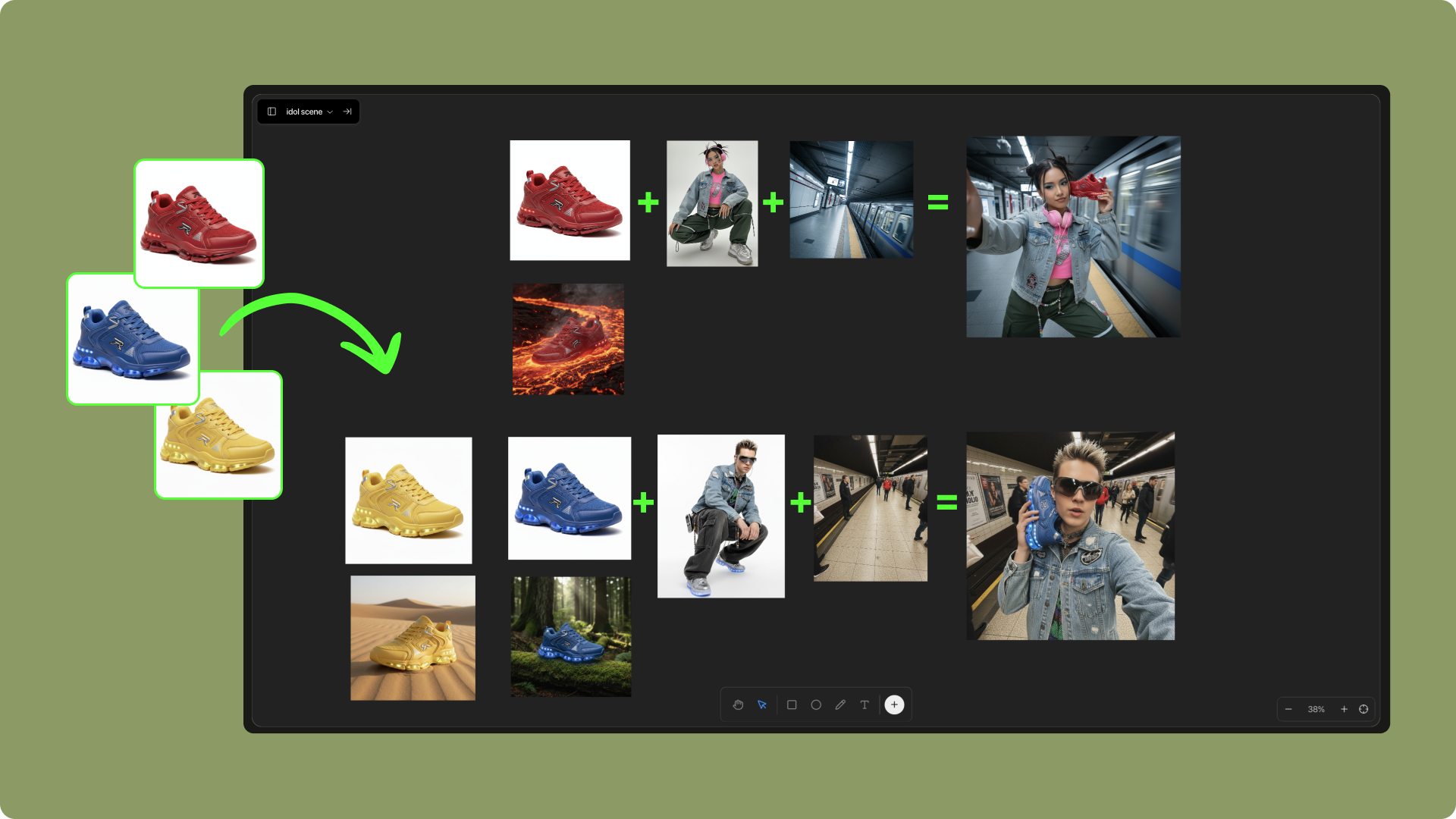 Select images you need and use prompts to merge them, creating more creative compositions.
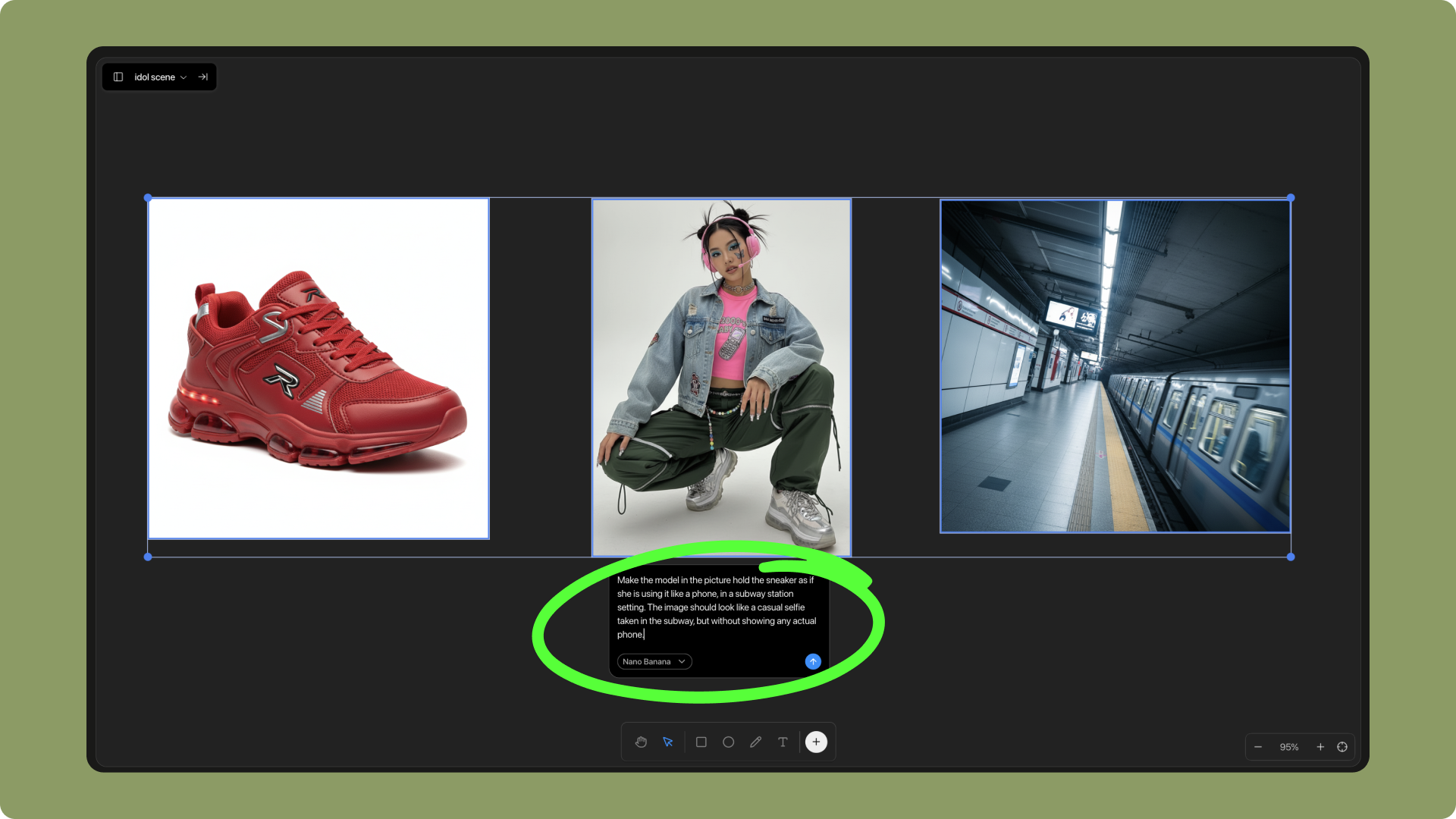 You can also refine a single product image and transform it into a high-quality commercial photo.
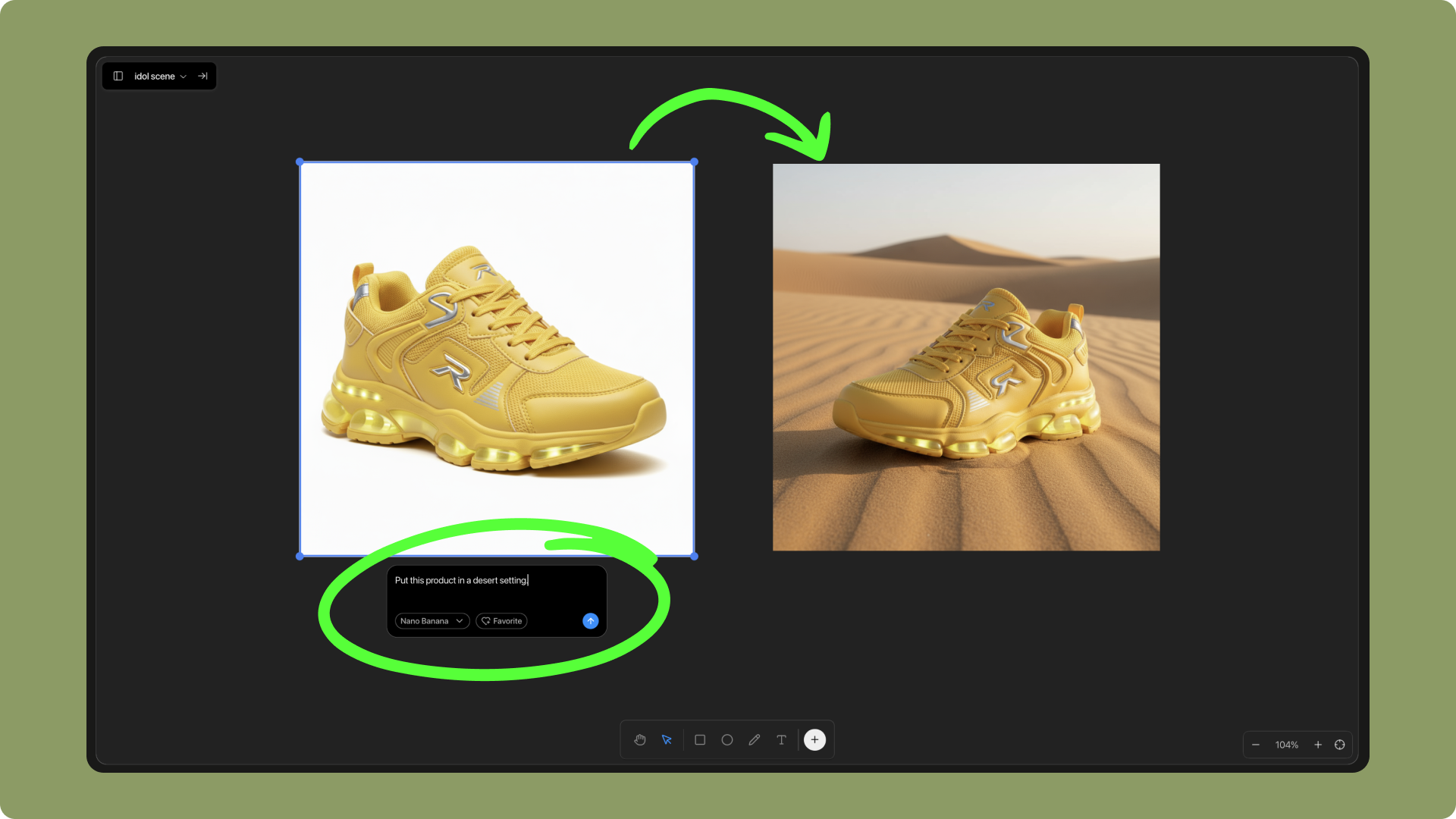 Once the visuals are ready, import them from **Library** into project **Assets**. AI will automatically place them in the correct positions, helping you complete page building faster.
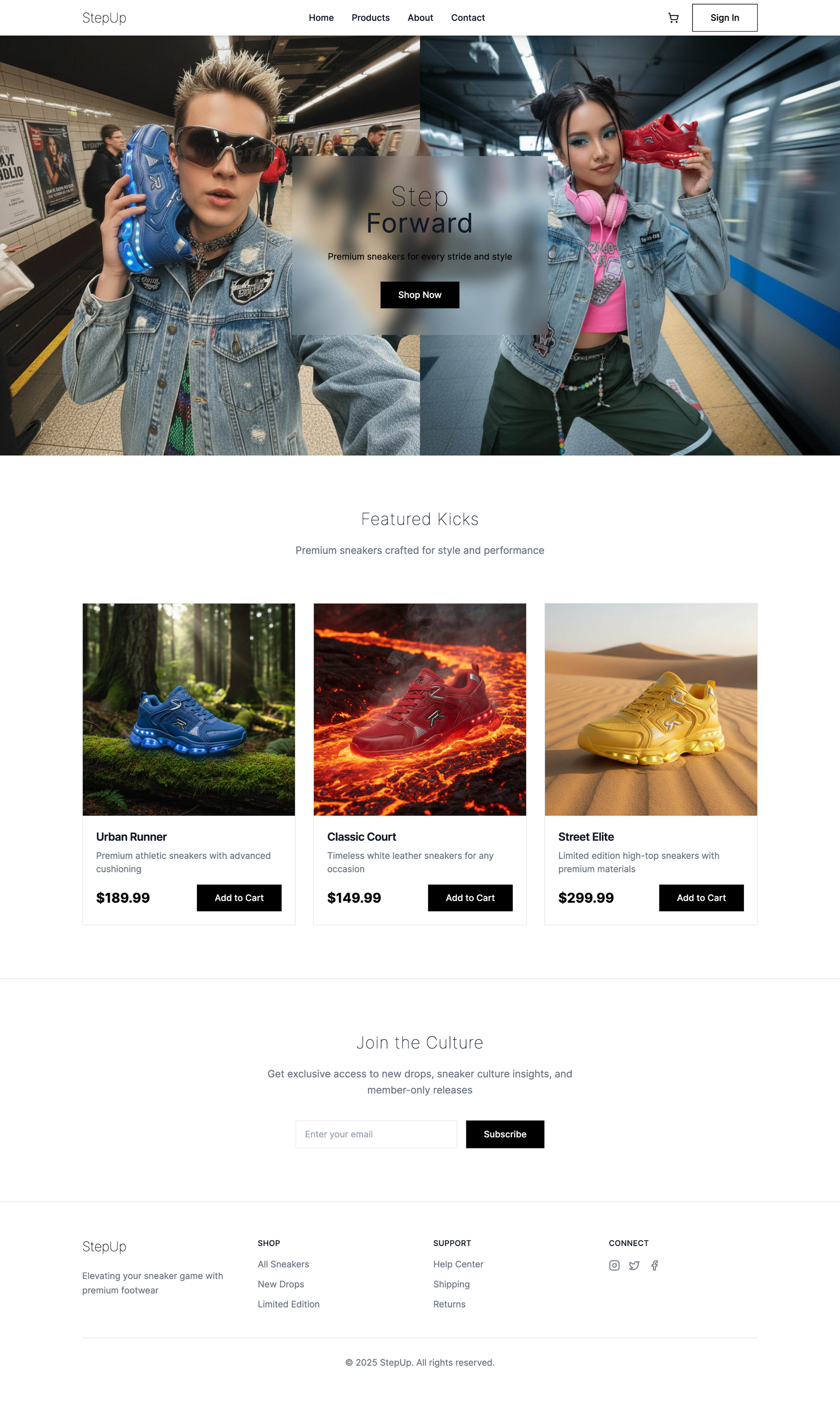
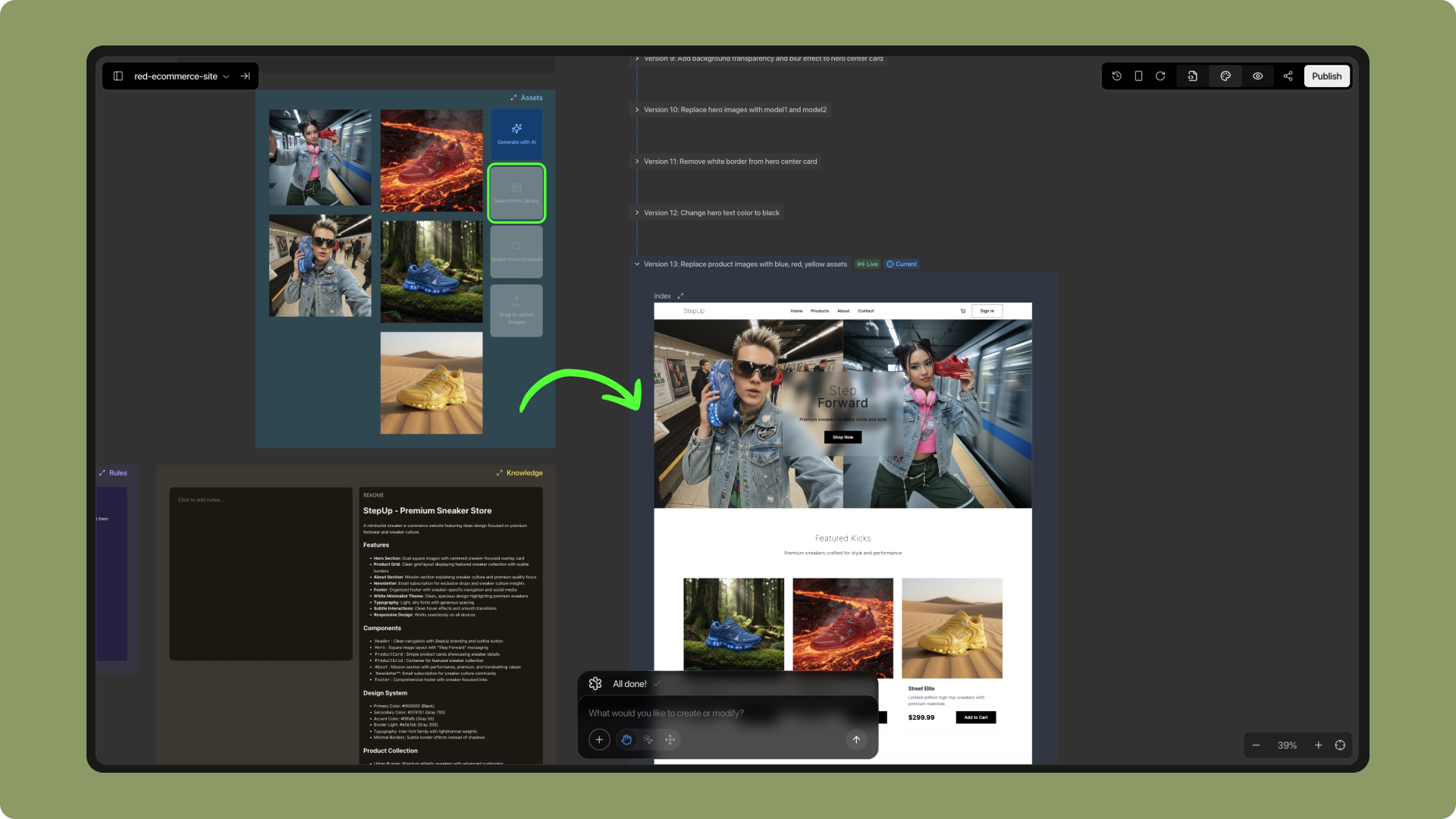 Final result:
 **Example: Personal Bio / Portfolio**
For personal showcases or portfolios, you can use **Image mode** to quickly generate visuals in a consistent style and apply them to pages:
Starting from a single original image, generate multiple variations—such as a set of Instagram-style grid visuals.
**Example: Personal Bio / Portfolio**
For personal showcases or portfolios, you can use **Image mode** to quickly generate visuals in a consistent style and apply them to pages:
Starting from a single original image, generate multiple variations—such as a set of Instagram-style grid visuals.
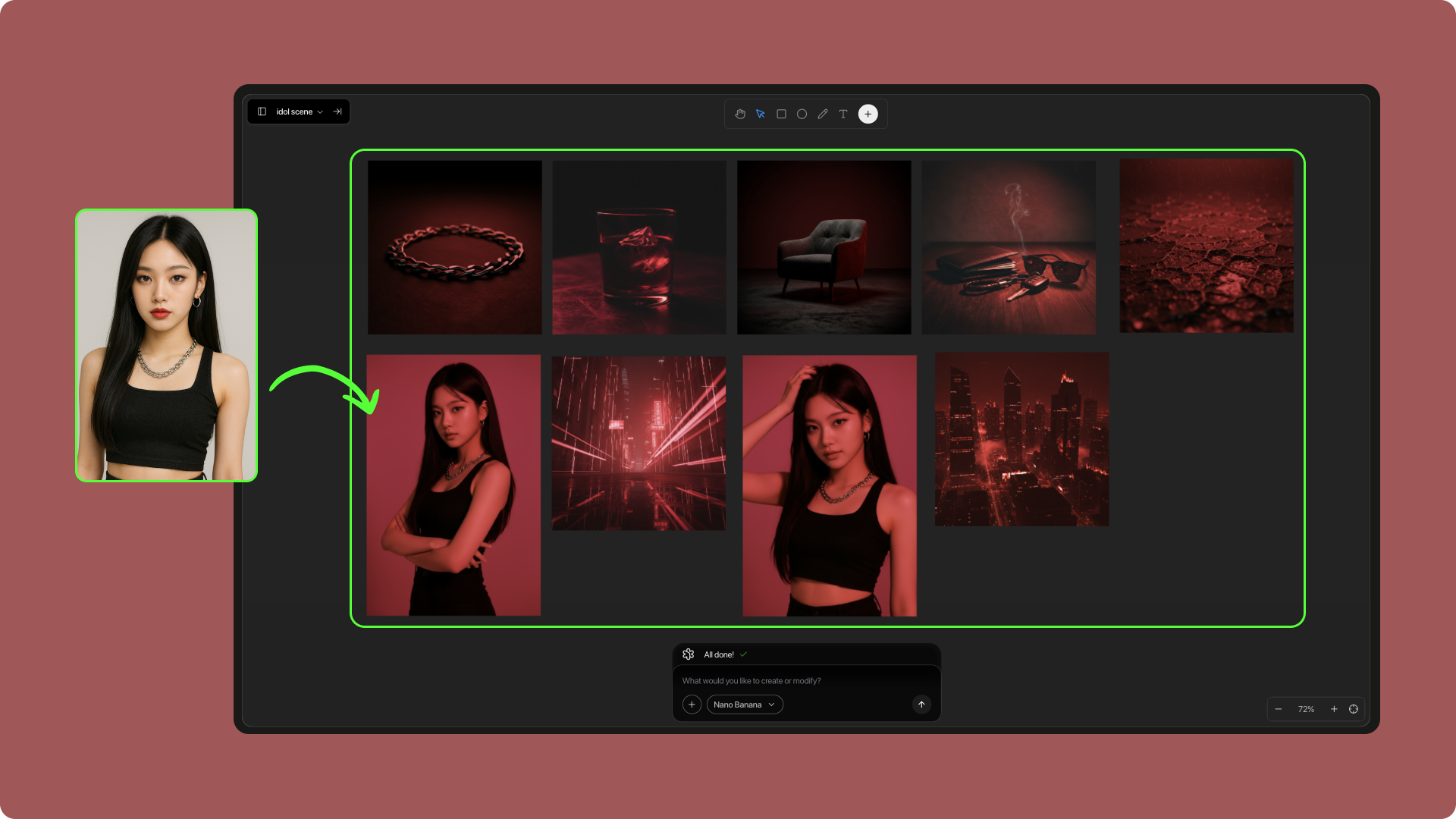 All generated images are automatically saved in the project **Library**, making them easy to manage and reuse.
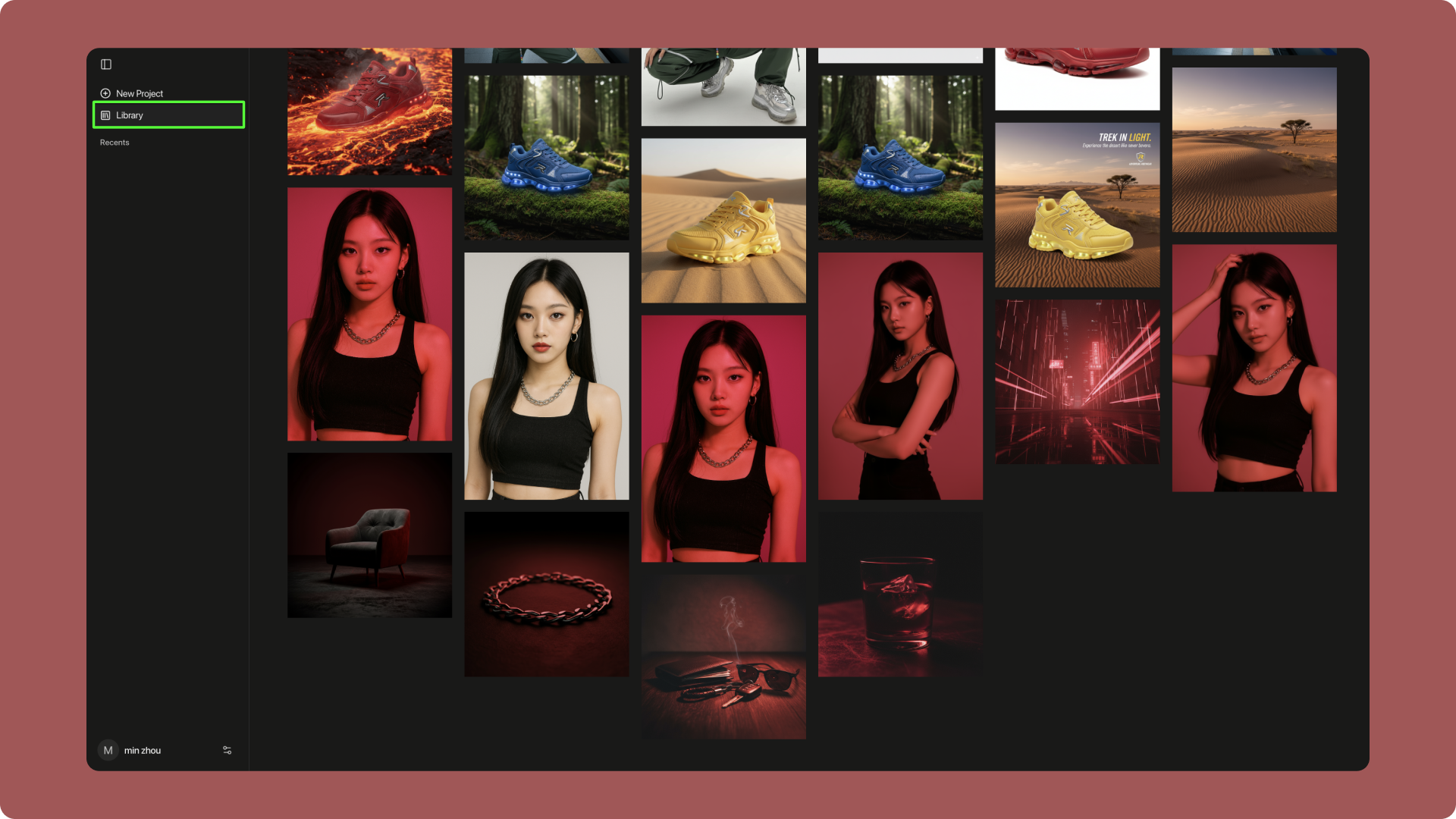 Import visuals from the **Library** into project **Assets**. AI will automatically place them in suitable positions, helping you complete the page quickly.
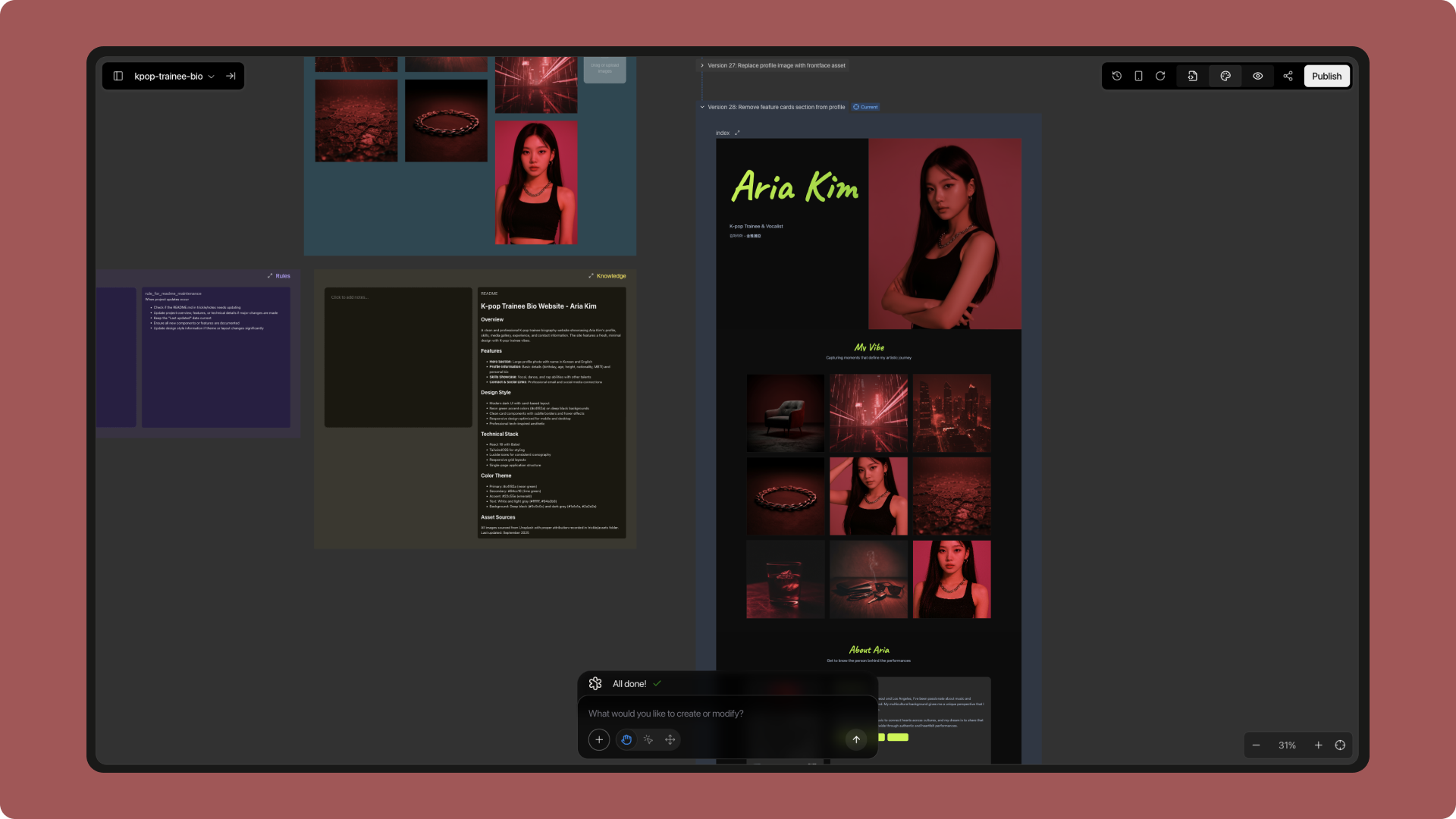 Final result:
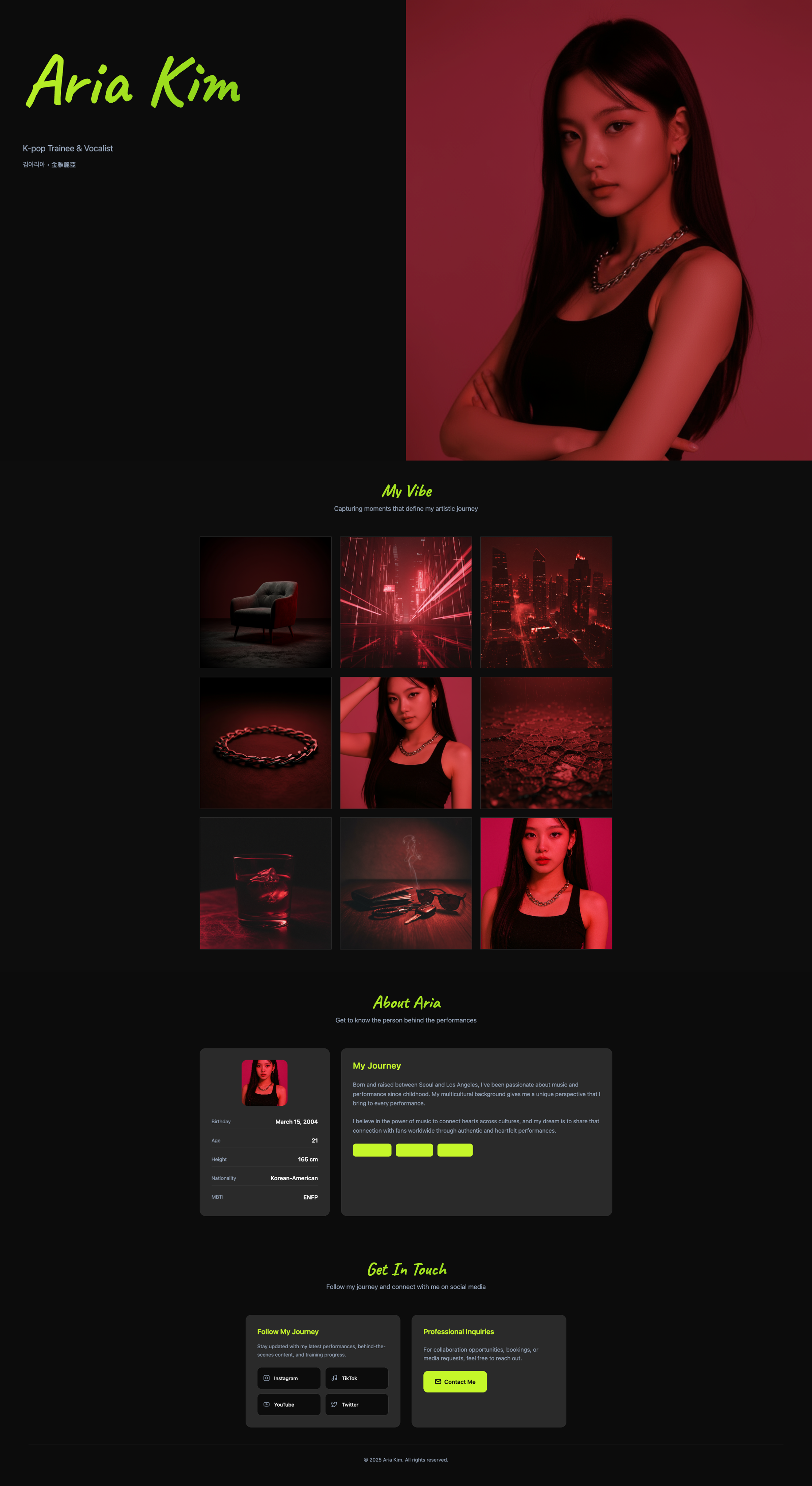 With **Image mode**, you can complete the full workflow of image generation, editing, management, and application in a single workspace. Whether for high-quality visuals in e-commerce campaigns or consistent assets for personal websites and portfolios, Image mode enables fast production and seamless integration.
It not only simplifies the traditional image creation process but also ensures efficient reuse and immediate application through integration with the **Library** and **Canvas mode**. With this feature, scattered creative ideas become an organized visual resource library, allowing you to complete projects faster and at higher quality.
With **Image mode**, you can complete the full workflow of image generation, editing, management, and application in a single workspace. Whether for high-quality visuals in e-commerce campaigns or consistent assets for personal websites and portfolios, Image mode enables fast production and seamless integration.
It not only simplifies the traditional image creation process but also ensures efficient reuse and immediate application through integration with the **Library** and **Canvas mode**. With this feature, scattered creative ideas become an organized visual resource library, allowing you to complete projects faster and at higher quality.