> ## Documentation Index
> Fetch the complete documentation index at: https://help.trickle.so/llms.txt
> Use this file to discover all available pages before exploring further.
# Magic Canvas
> Trickle Magic Canvas is the first agentic canvas for vibe coding. Collaborate visually with AI to create multi-page apps and websites, from assets and rules to live publishing.
## **Trickle Magic Canvas**
**Magic Canvas** brings human–AI co-creation to life. On a single visual canvas, you can build full applications and websites from scratch.
**Trickle Magic Canvas** is the first agentic canvas for AI collaboration. Here, humans and AI create side by side, turning ideas into fully functional apps and sites. This guide introduces the core concepts, key features, and workflows to help you get started quickly and efficiently.
## **What is Magic Canvas?**
Magic Canvas is not just another no-code board or a simple prompt box. It is a **context-driven, multimodal workspace** where AI interprets your intent through multiple inputs:
* **Page layouts** (components and structure)
* **Content inputs** (prompts, instructions, edits)
* **Logic rules** (notes, constraints, relationships)
* **Assets and data** (images, databases, references)
With this context, AI can generate, refine, and expand pages in real time—continuously improving within the collaboration loop.
## **Quick Start with Magic Canvas**
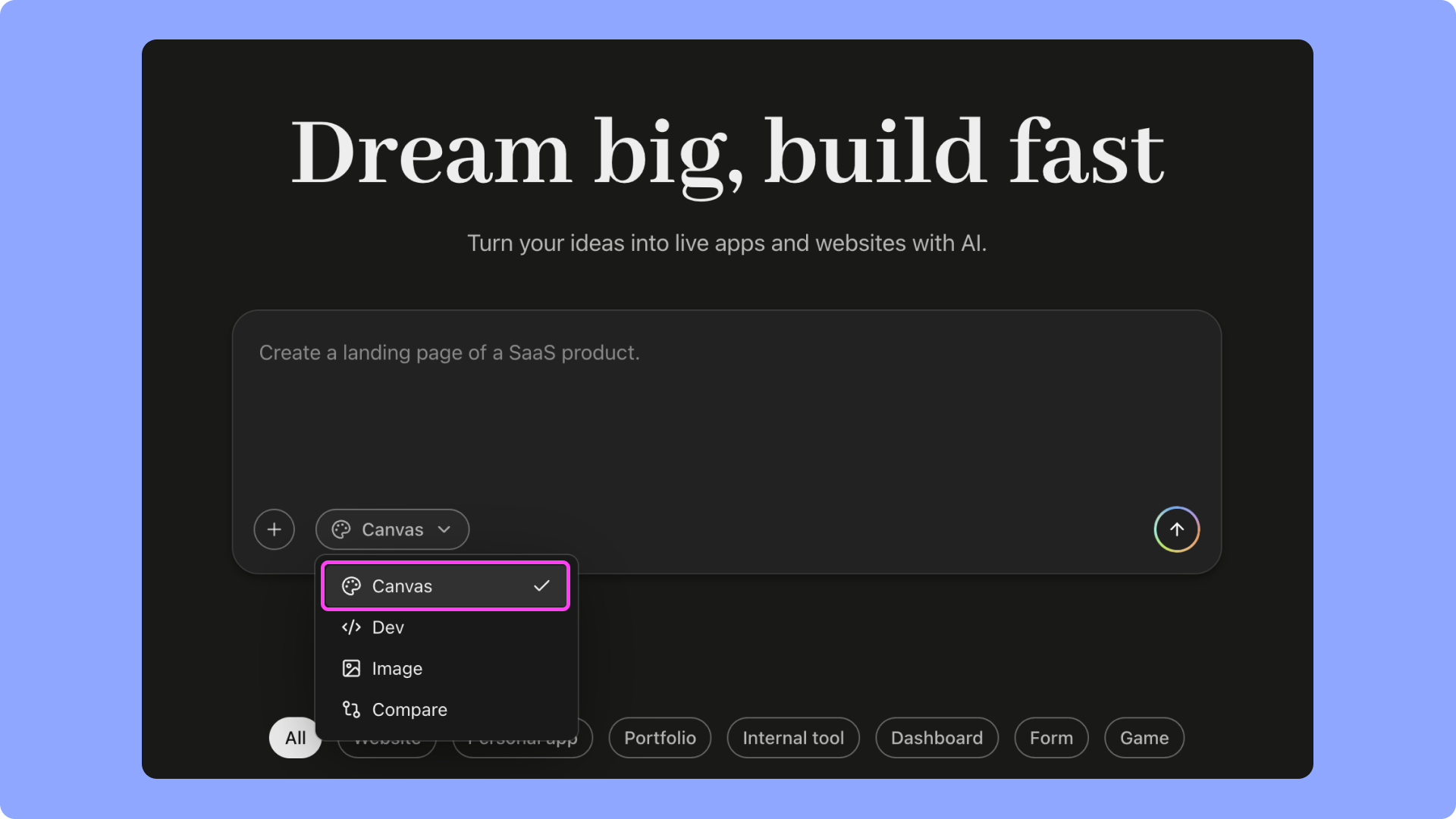
Switch to Canvas mode from the homepage. Enter your first prompt, or upload an image reference, and AI will generate the initial page and content directly on the canvas.
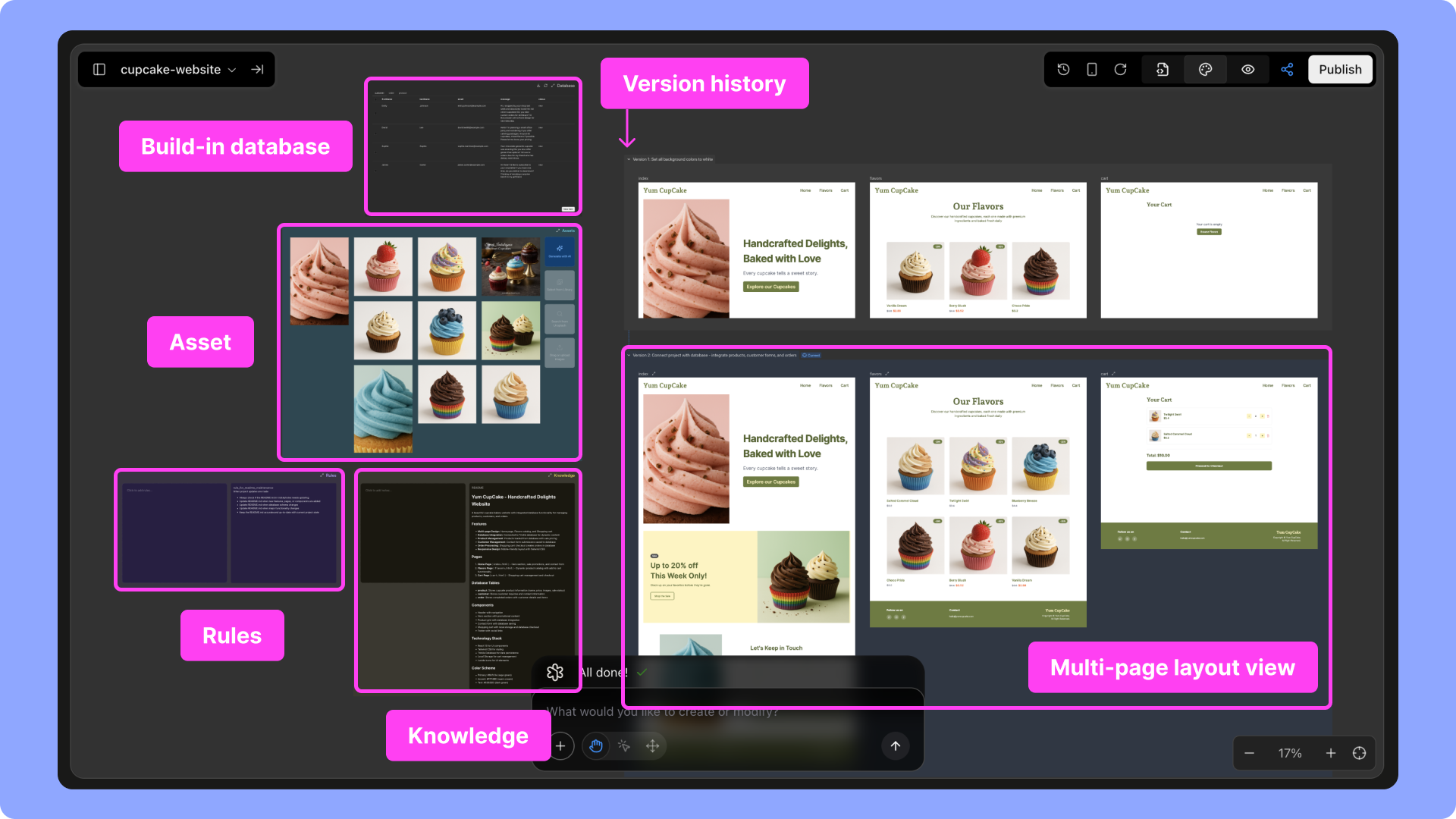 Drag and drop your logo or images into the Asset area and label them clearly. AI can then reference and reuse them across the project.
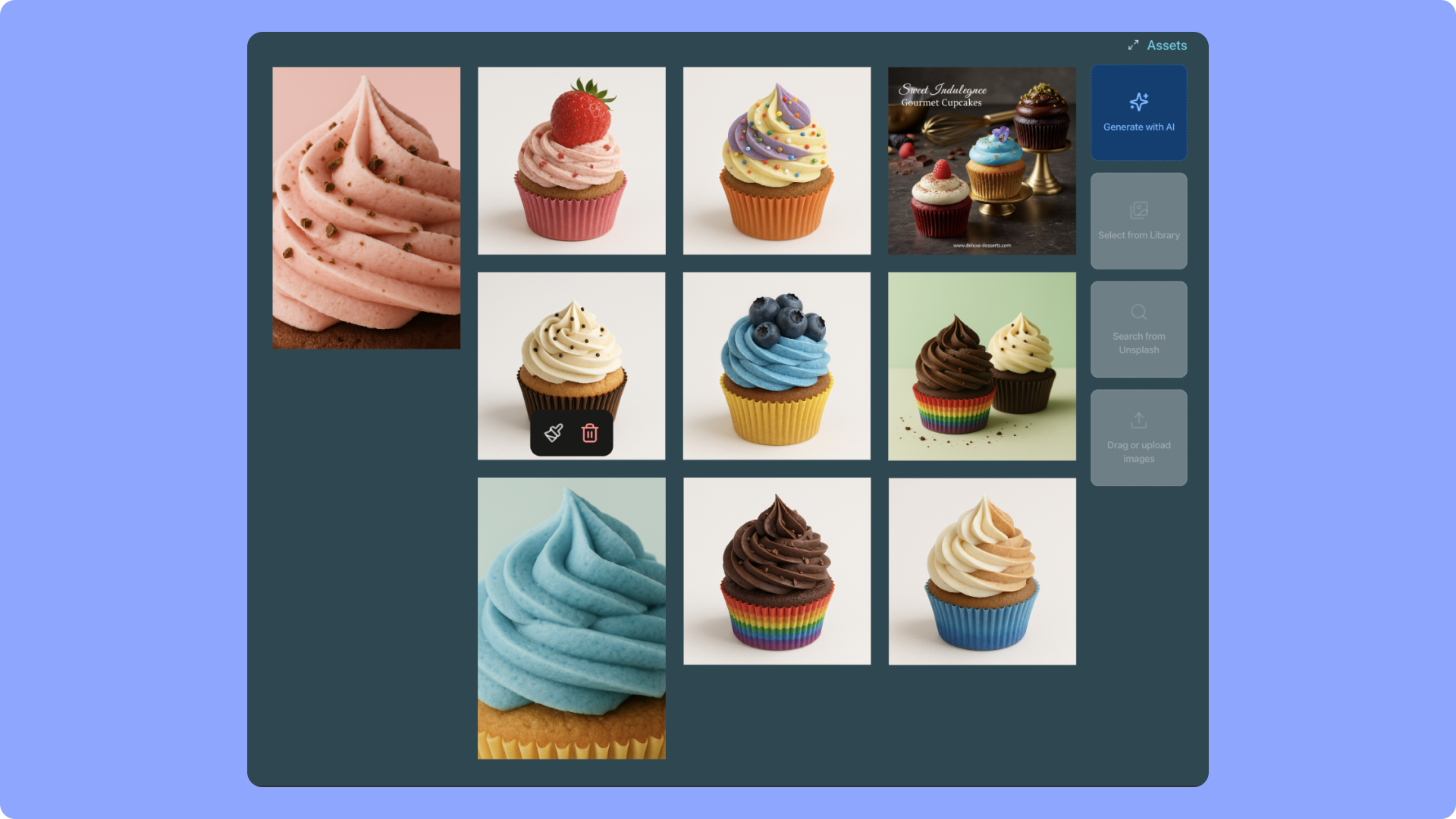 Within Assets, you can:
* Generate new images with AI (powered by Gemini 2.5 Flash Image, also known as nano-banana)
* Recreate or enhance existing assets
* Import from the global library or search Unsplash
* Seamlessly insert generated visuals into your website
For details, see the *AI Images and Assets* section.
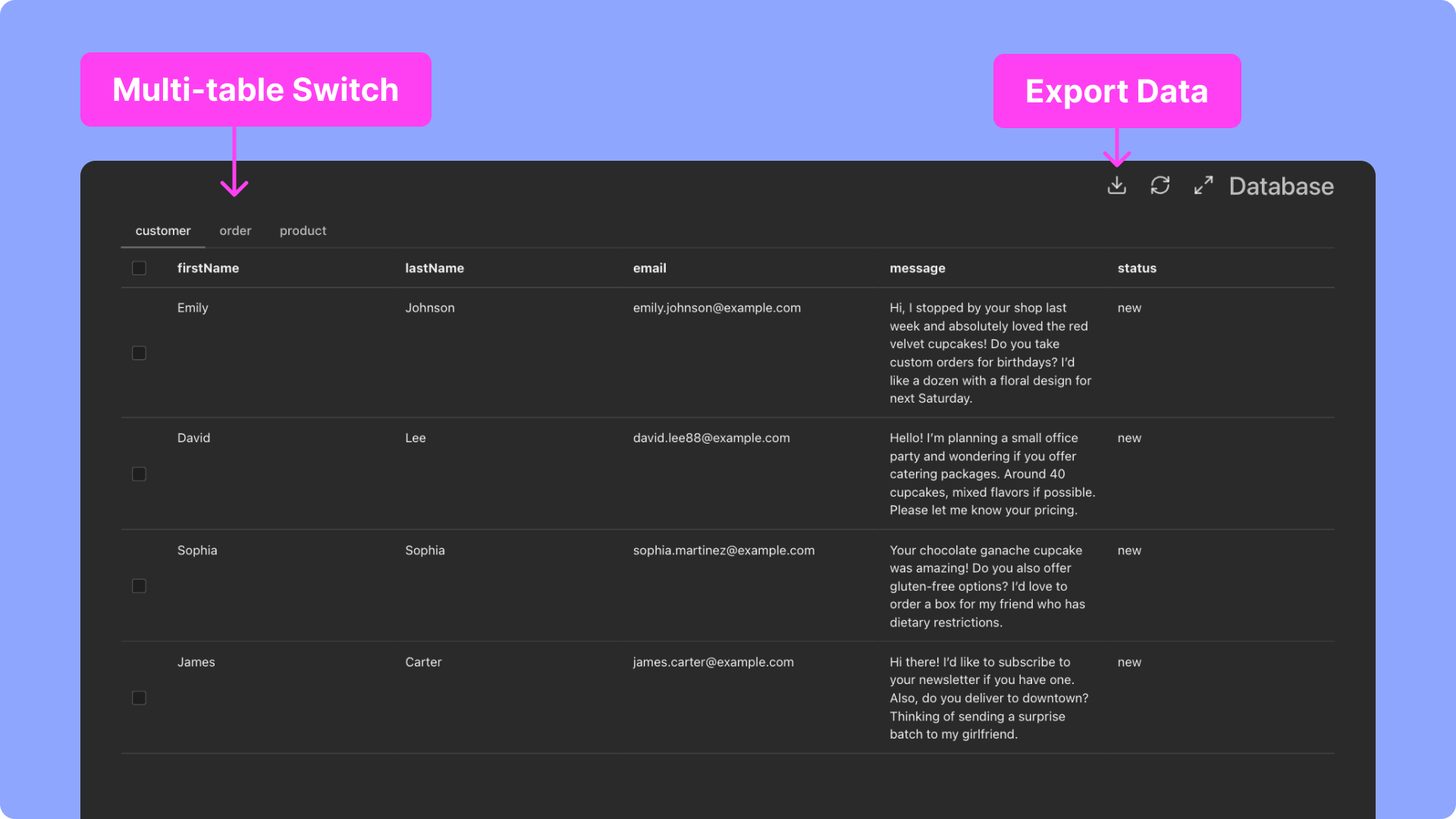
For projects with dynamic content, AI can automatically create a database with linked fields. You can also manually activate it with a prompt, defining collections and entries.
Within Assets, you can:
* Generate new images with AI (powered by Gemini 2.5 Flash Image, also known as nano-banana)
* Recreate or enhance existing assets
* Import from the global library or search Unsplash
* Seamlessly insert generated visuals into your website
For details, see the *AI Images and Assets* section.
For projects with dynamic content, AI can automatically create a database with linked fields. You can also manually activate it with a prompt, defining collections and entries.
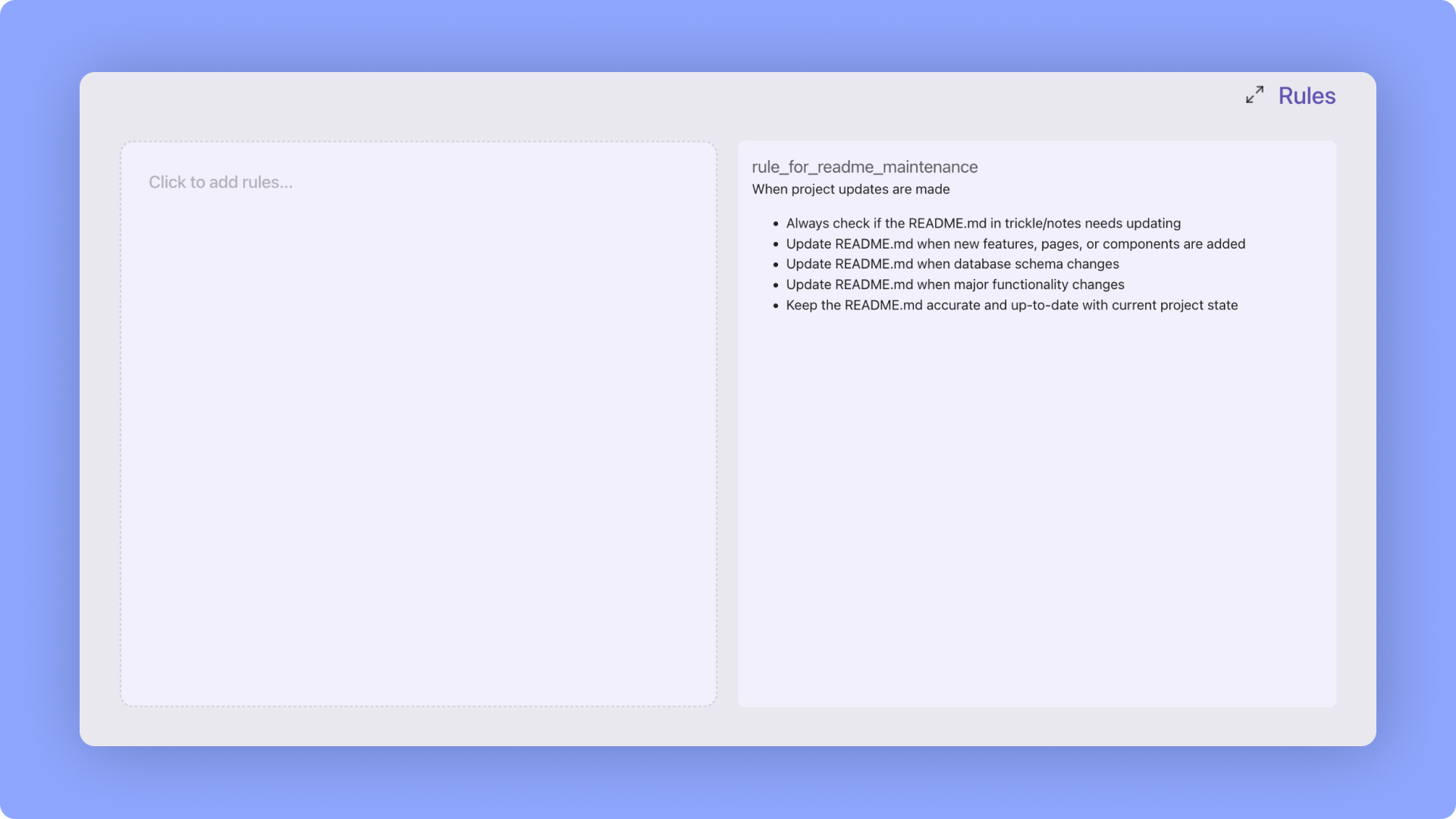
 Write key rules or notes directly on the canvas—style guides, tone, response formats—to help AI align better with your needs. Coding Agents can also infer and extend these rules automatically.
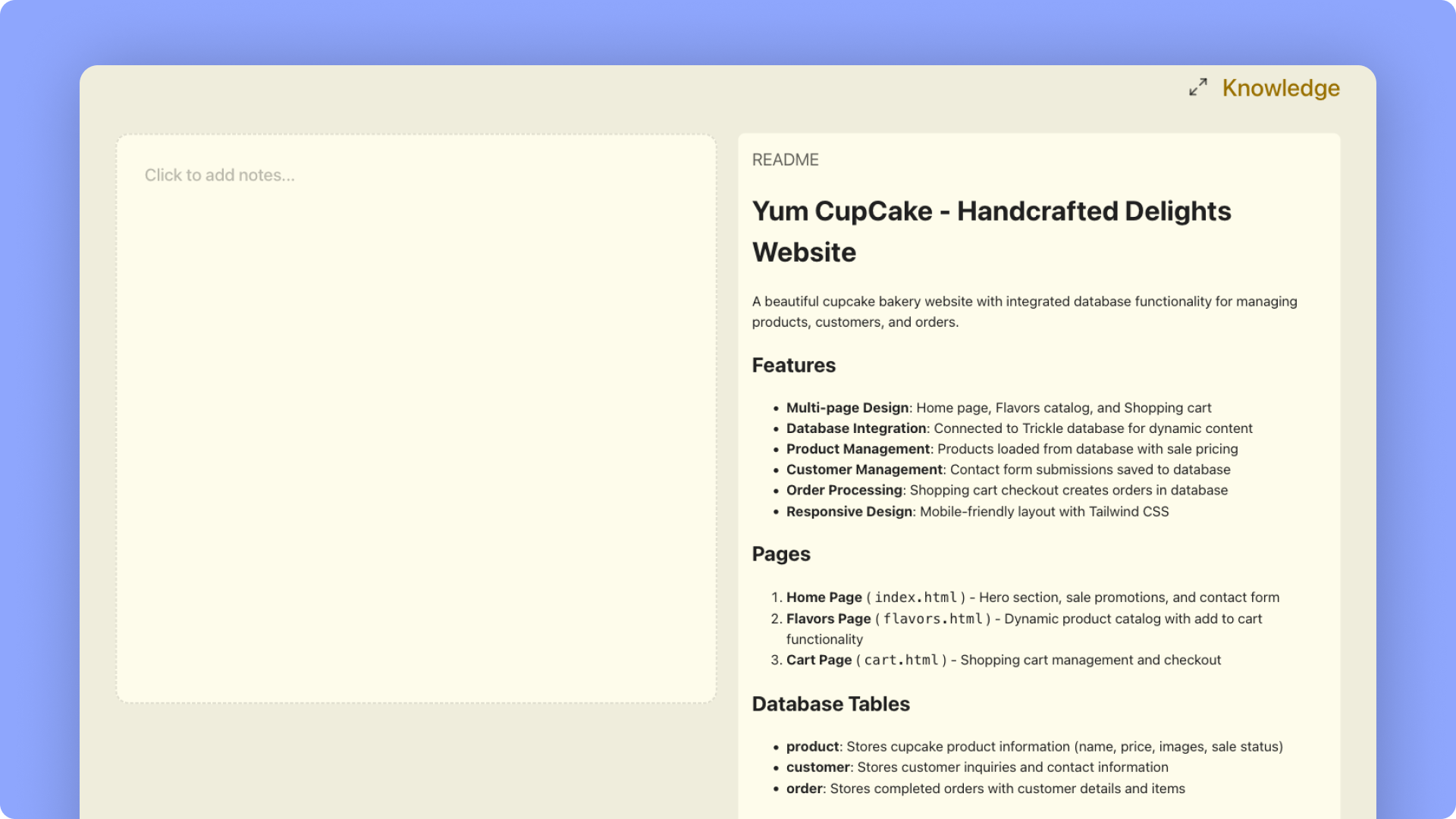
 Add product docs, brand guidelines, FAQs, or internal references to improve accuracy. This ensures AI generates results tailored to your real-world scenarios.
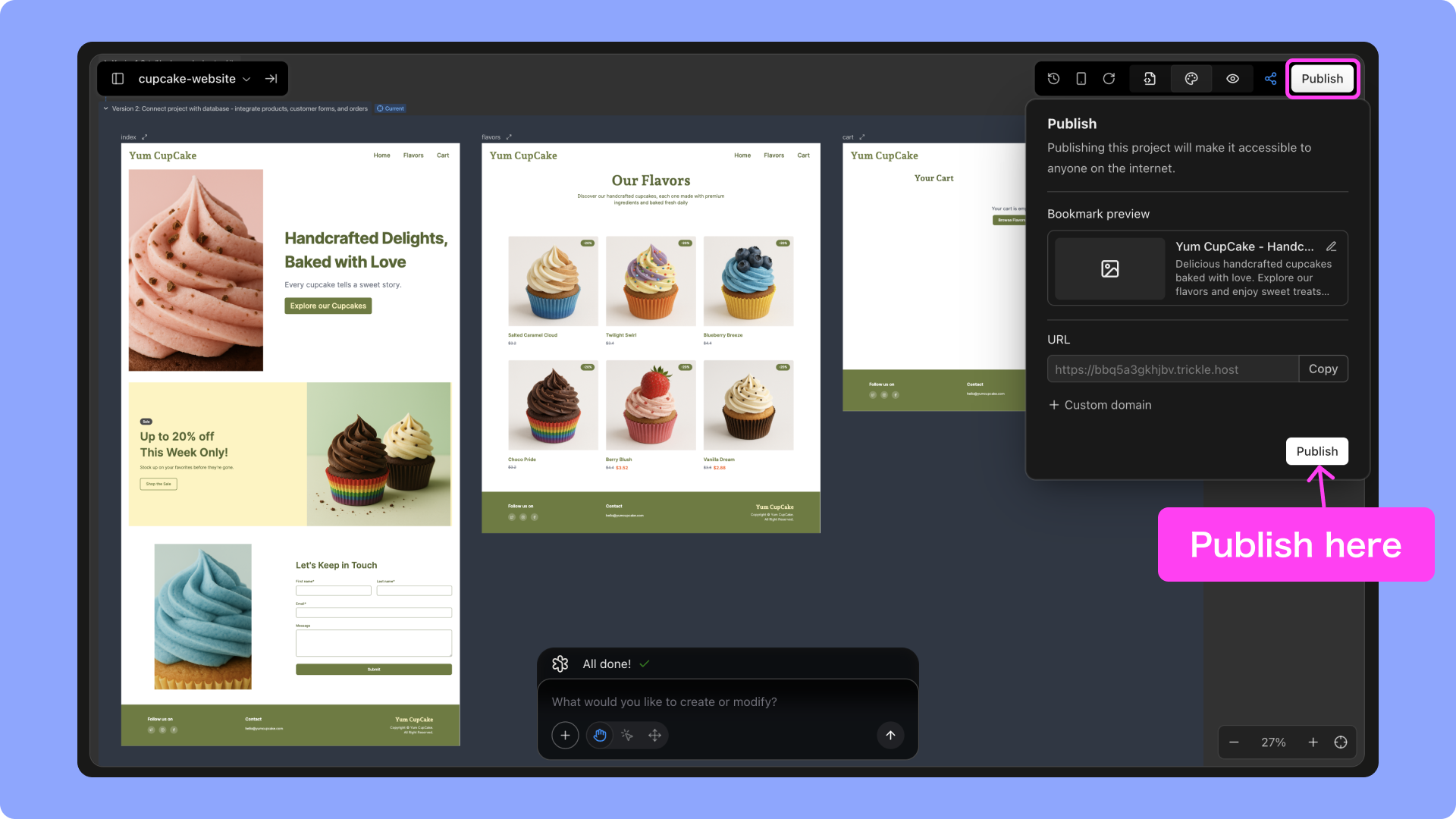
 Once ready, click **Publish** to launch instantly—no extra steps needed.
 ## **Version History**
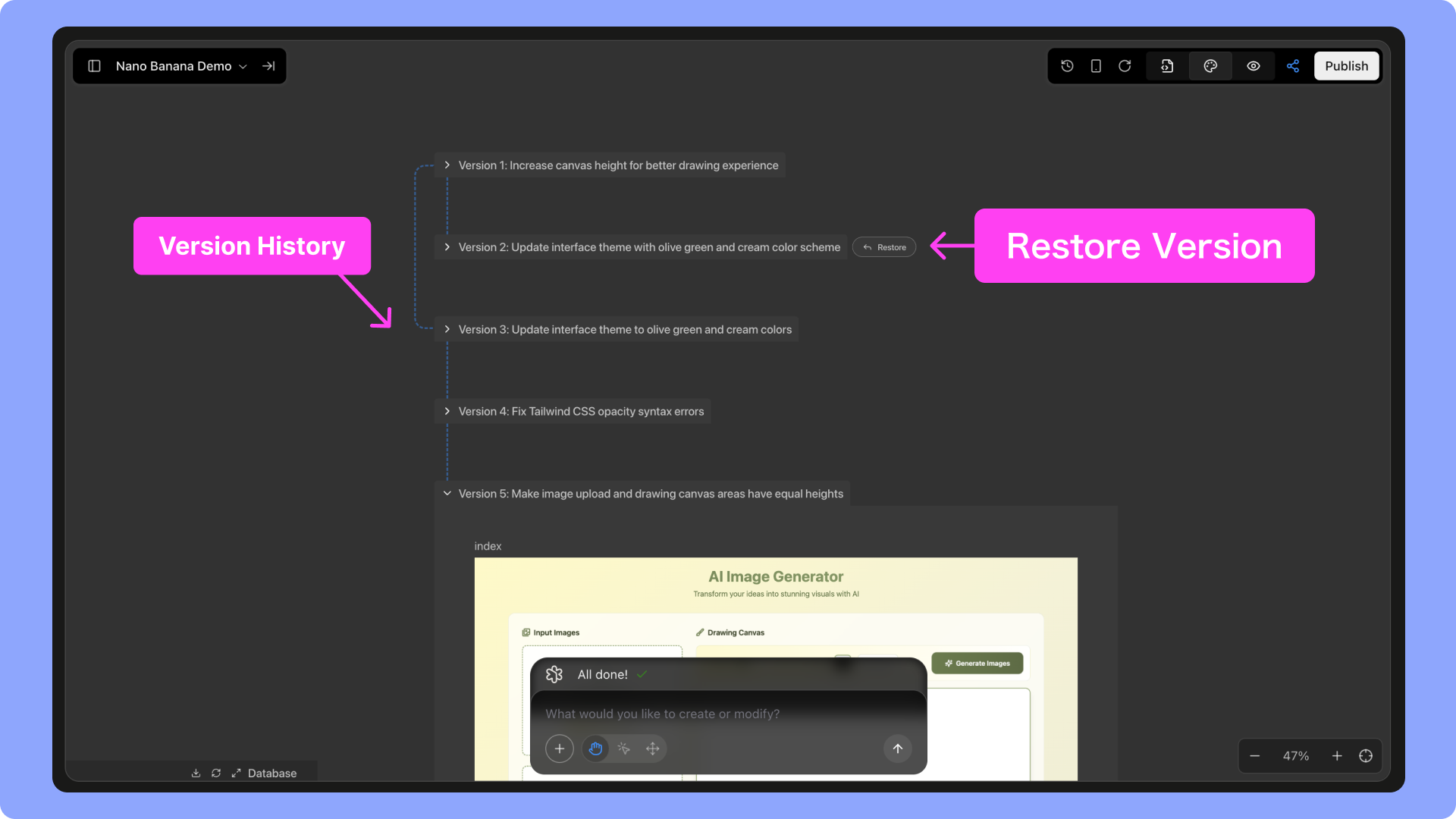
You can roll back to a previous version by hovering over its name in the history list and clicking **Restore**.
## **Version History**
You can roll back to a previous version by hovering over its name in the history list and clicking **Restore**.
 ## **Build Multi-Page Projects**
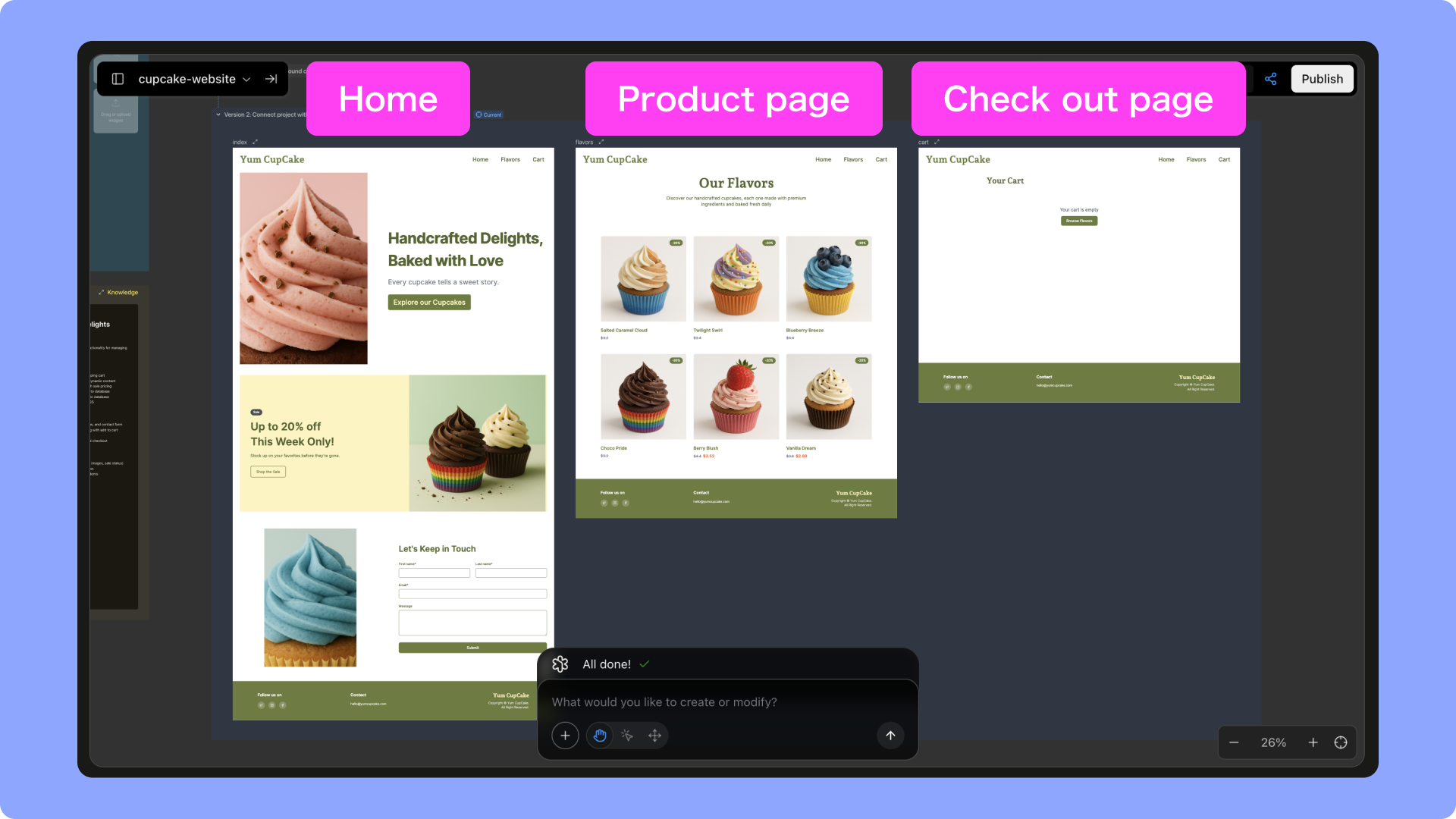
* **New Project**: Specify the pages you need (e.g., Home, Product Detail, About, Contact). AI generates them in one go and links navigation automatically.
* **Existing Project**: Ask AI to add new pages. Just describe the purpose and content, and it will generate them within the current canvas.
## **Build Multi-Page Projects**
* **New Project**: Specify the pages you need (e.g., Home, Product Detail, About, Contact). AI generates them in one go and links navigation automatically.
* **Existing Project**: Ask AI to add new pages. Just describe the purpose and content, and it will generate them within the current canvas.
 ## **Visual Editing and Drag-and-Drop**
* **Edit Elements**
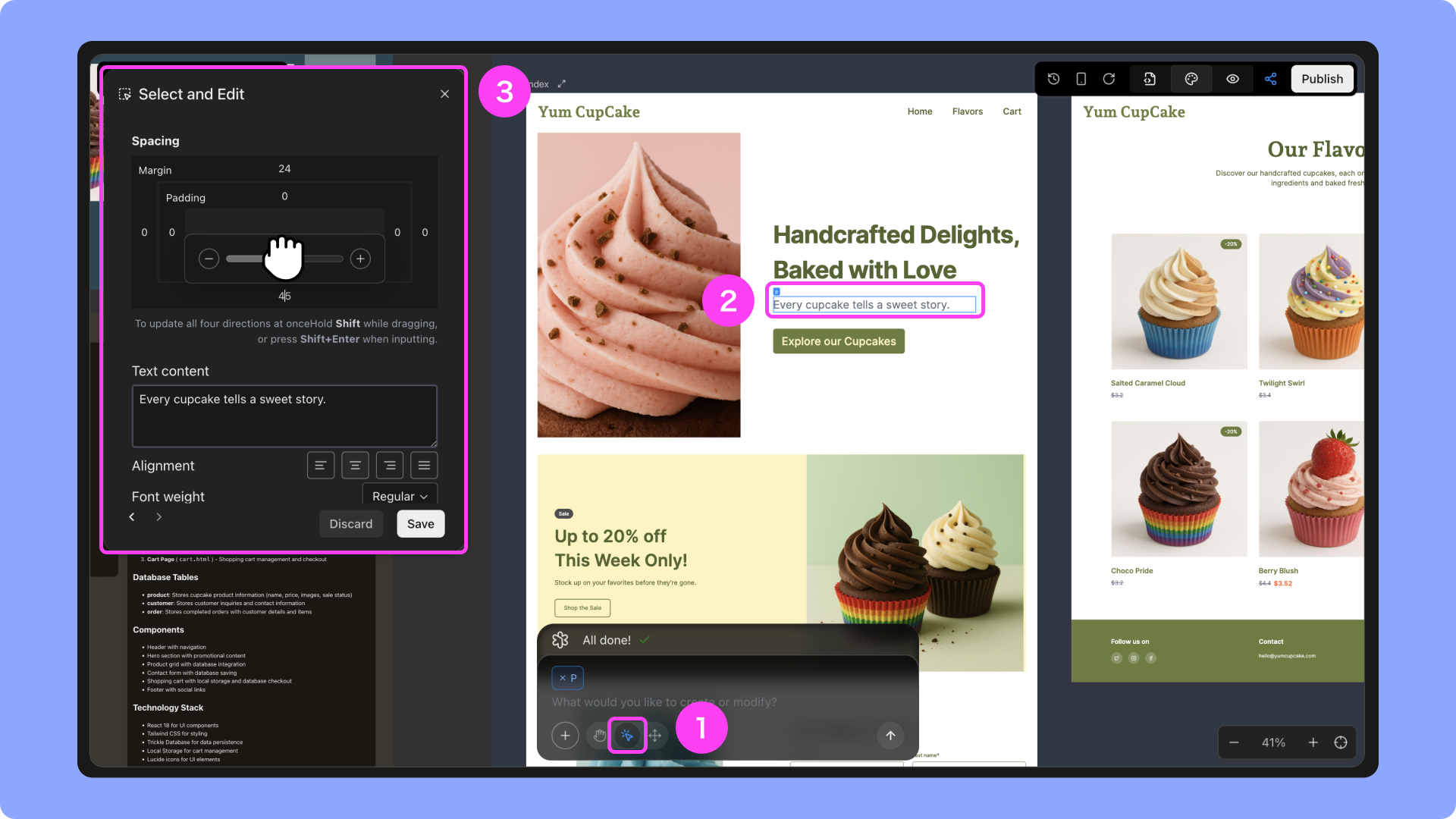
Click **Select to Edit** in the chat bar to adjust text, spacing, alignment, or colors.
## **Visual Editing and Drag-and-Drop**
* **Edit Elements**
Click **Select to Edit** in the chat bar to adjust text, spacing, alignment, or colors.
 * **Move Elements**
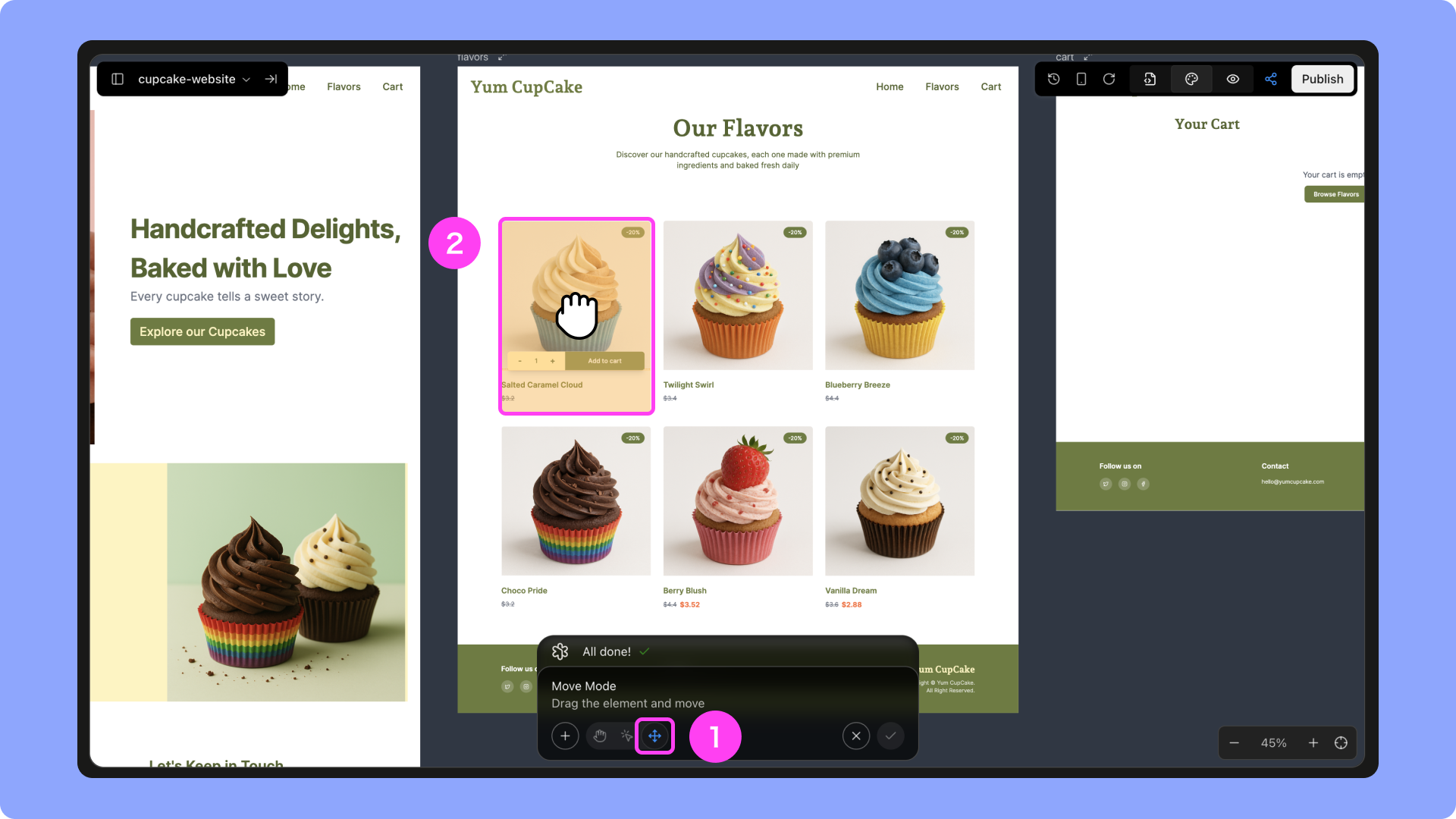
Click **Move Element** to drag and reposition items on the canvas.
* **Move Elements**
Click **Move Element** to drag and reposition items on the canvas.
 All edits are free and instantly converted into production-grade code, ready for publishing. For more, see the *Visual Editing* section.
## **One Canvas, Full Workflow**
In **Trickle Magic Canvas**, you can do everything in one space: upload assets, add business knowledge, generate multiple pages, roll back versions, and publish live. From rules and databases to direct edits and layout adjustments, every change is translated into production-ready code—turning your ideas smoothly into websites and applications.
All edits are free and instantly converted into production-grade code, ready for publishing. For more, see the *Visual Editing* section.
## **One Canvas, Full Workflow**
In **Trickle Magic Canvas**, you can do everything in one space: upload assets, add business knowledge, generate multiple pages, roll back versions, and publish live. From rules and databases to direct edits and layout adjustments, every change is translated into production-ready code—turning your ideas smoothly into websites and applications.